
You do not need to know how to program. Drag blocks from the toolbox and snap them together like puzzle pieces: a block says what should happen, such as moving a sprite, playing a sound or adding to the score, and blocks that fit together run one after another. Put them inside an event block to say when they run, and the game does it. VCS Game Maker turns your blocks into batari Basic and a little assembly, builds an Atari 2600 ROM from them, and runs it in the emulator next to your blocks. The Generated tab shows the code it wrote, so you can read it and learn from it.
Build Atari 2600 games with blocks.
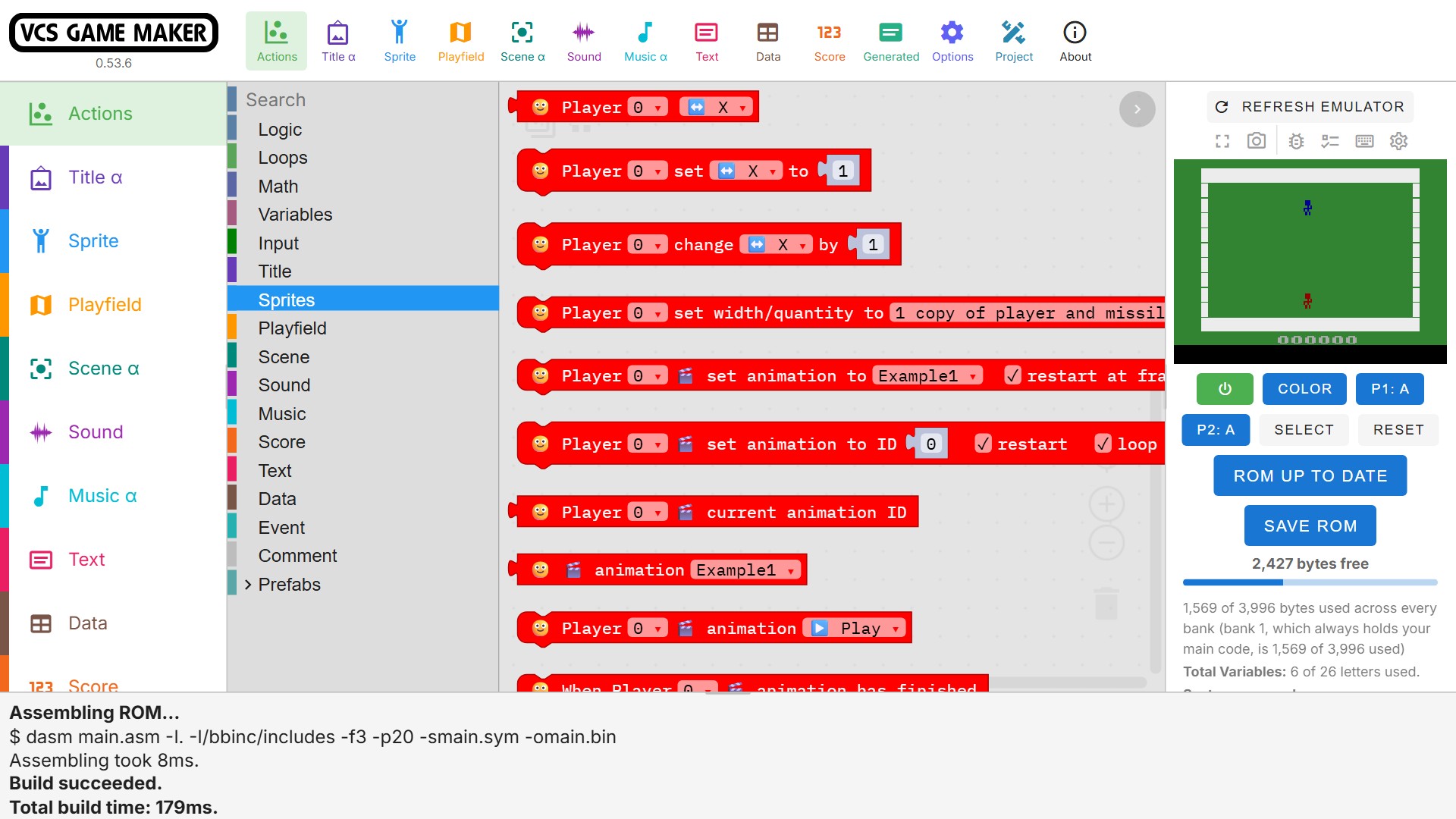
VCS Game Maker is a visual development environment for building Atari 2600 games. Design your game's logic with Blockly blocks, and behind the scenes VCSGM generates batari Basic source code (along with a bit of assembly), compiles it into an Atari 2600 ROM, and runs it in the built-in emulator preview, using either 6502.ts or Gopher2600.
This is very much a work-in-progress.
Download VCS GAME MAKER
Version 0.54.0
Features
Blocks in,
ROM out
Put the logic of your game together from Blockly blocks. VCS Game Maker then writes batari Basic (and a little assembly), compiles it into an Atari 2600 ROM.
Standard & DPC+ kernels
Use the Standard kernel, or upgrade to the DPC+ kernel (wip) for more sprites, a taller playfield, per-row colors and a coprocessor.
sound & music
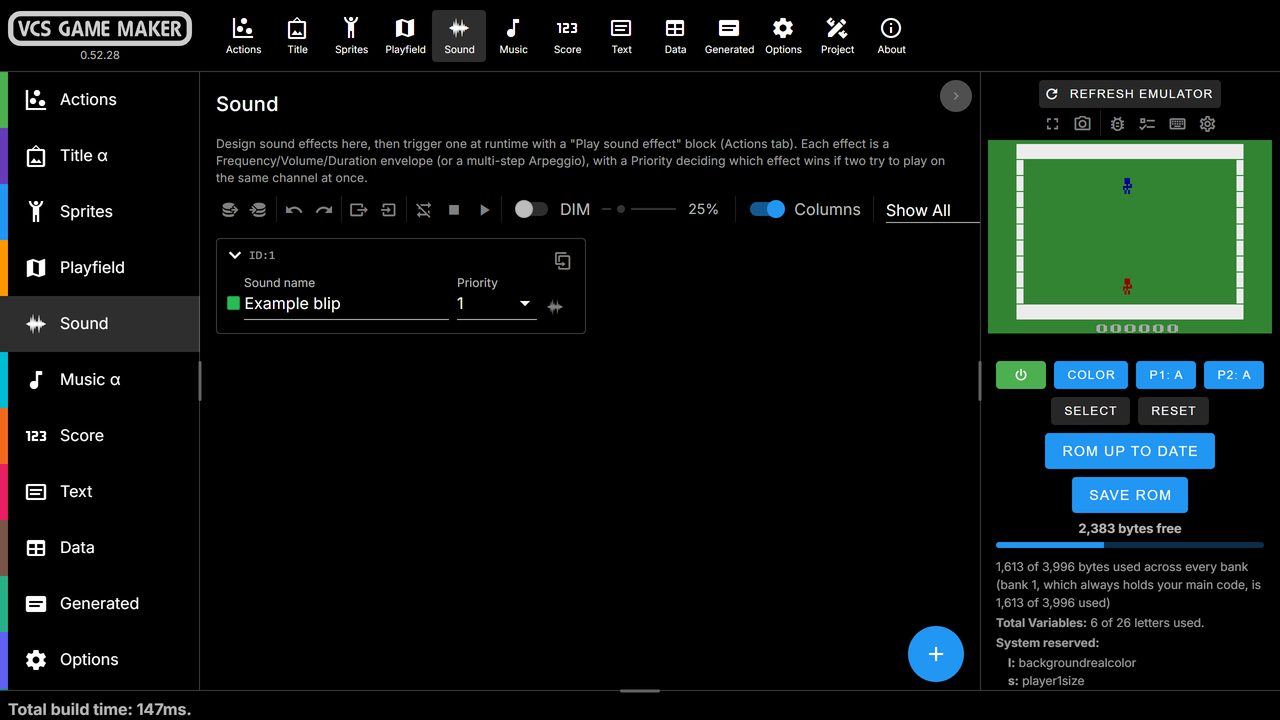
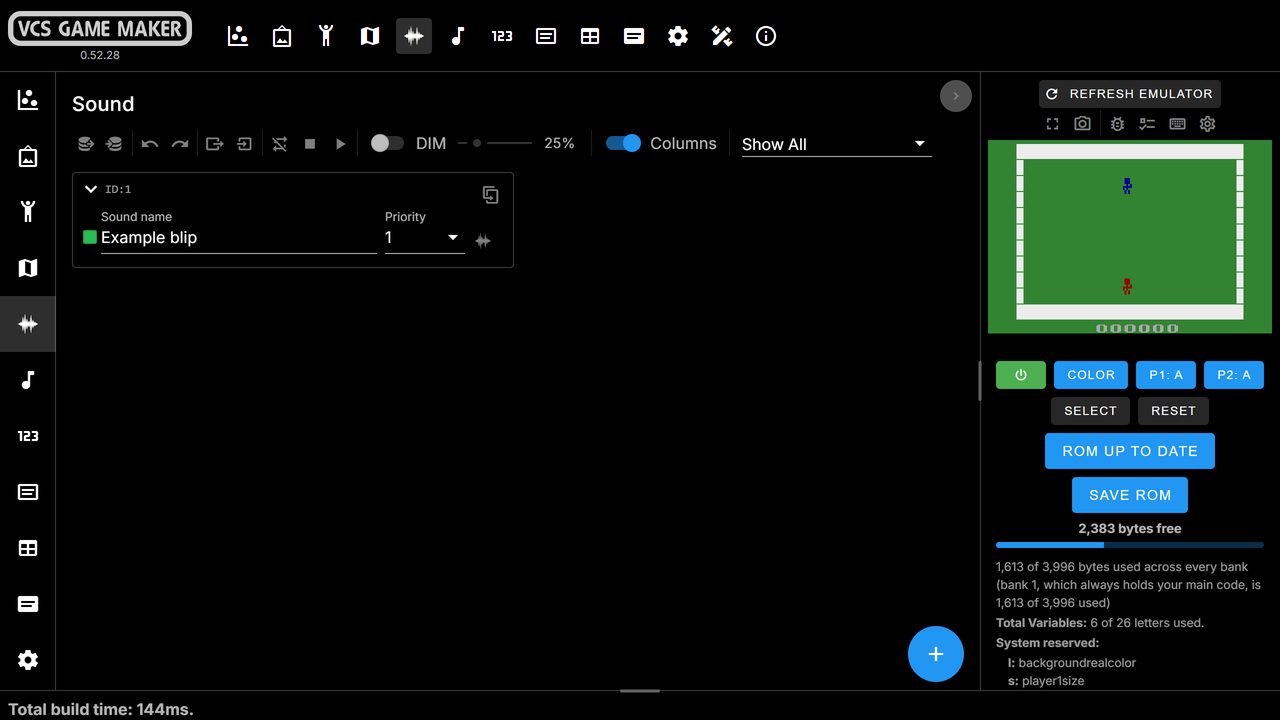
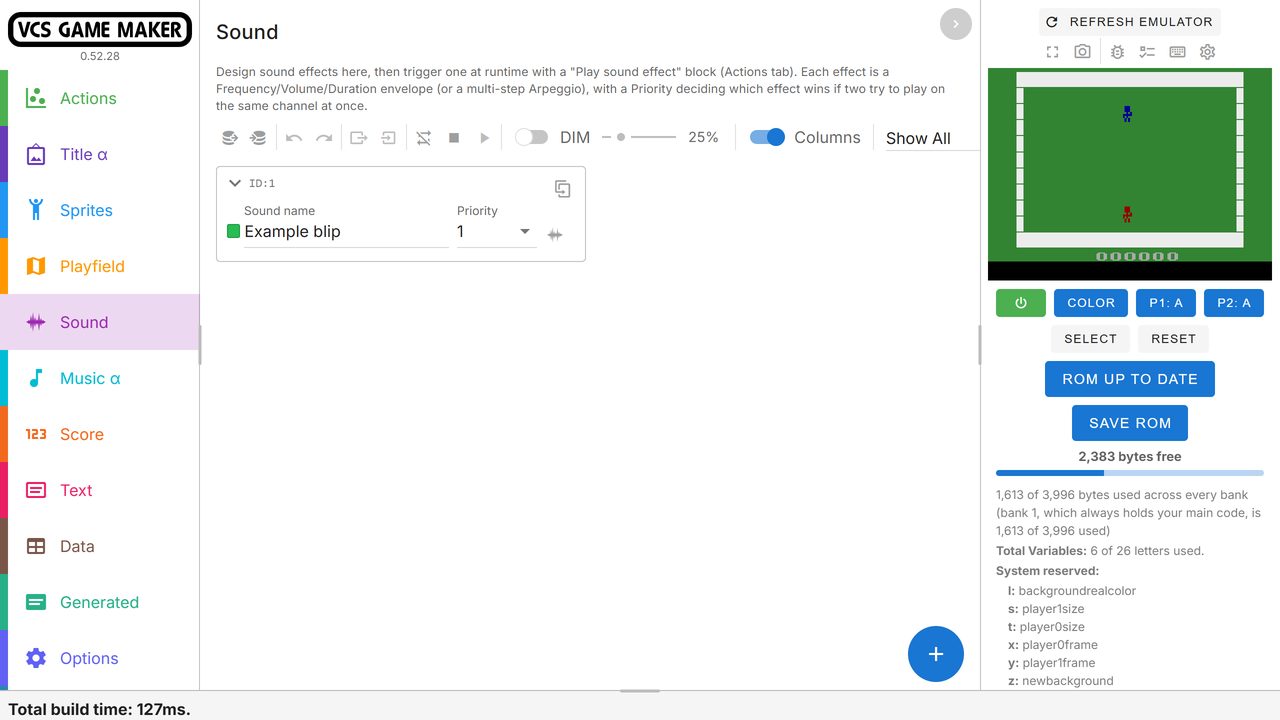
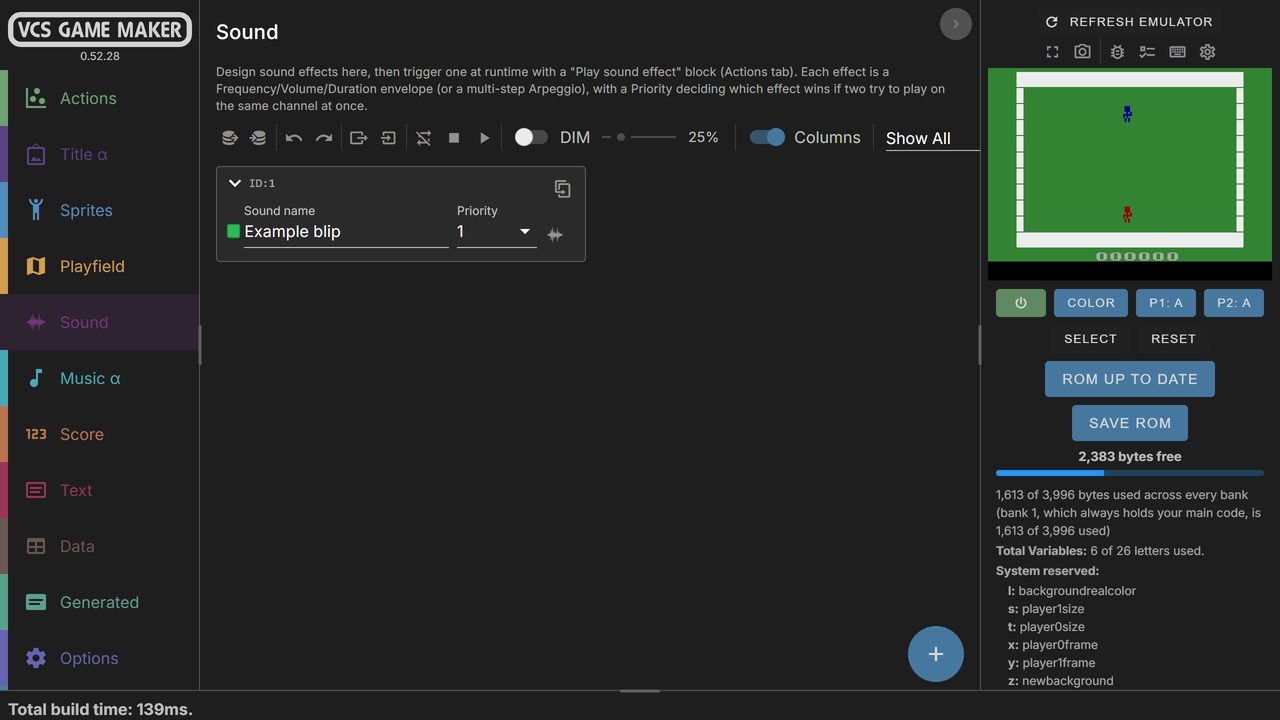
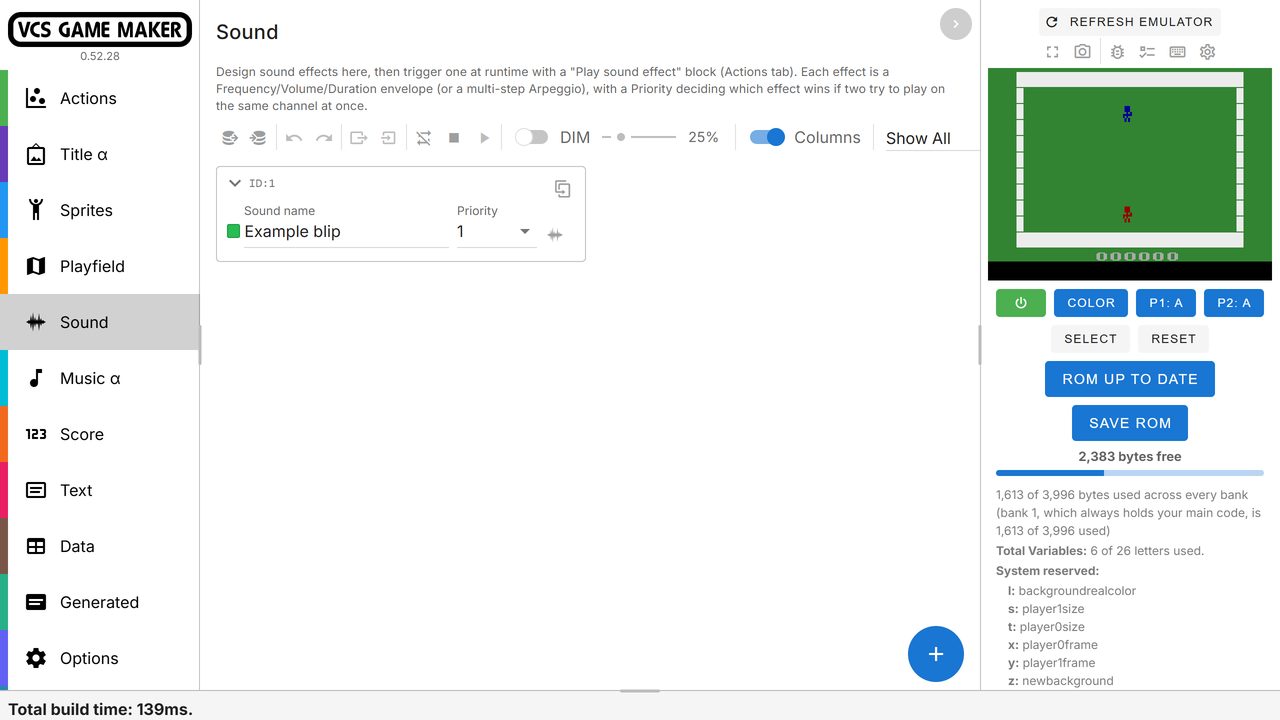
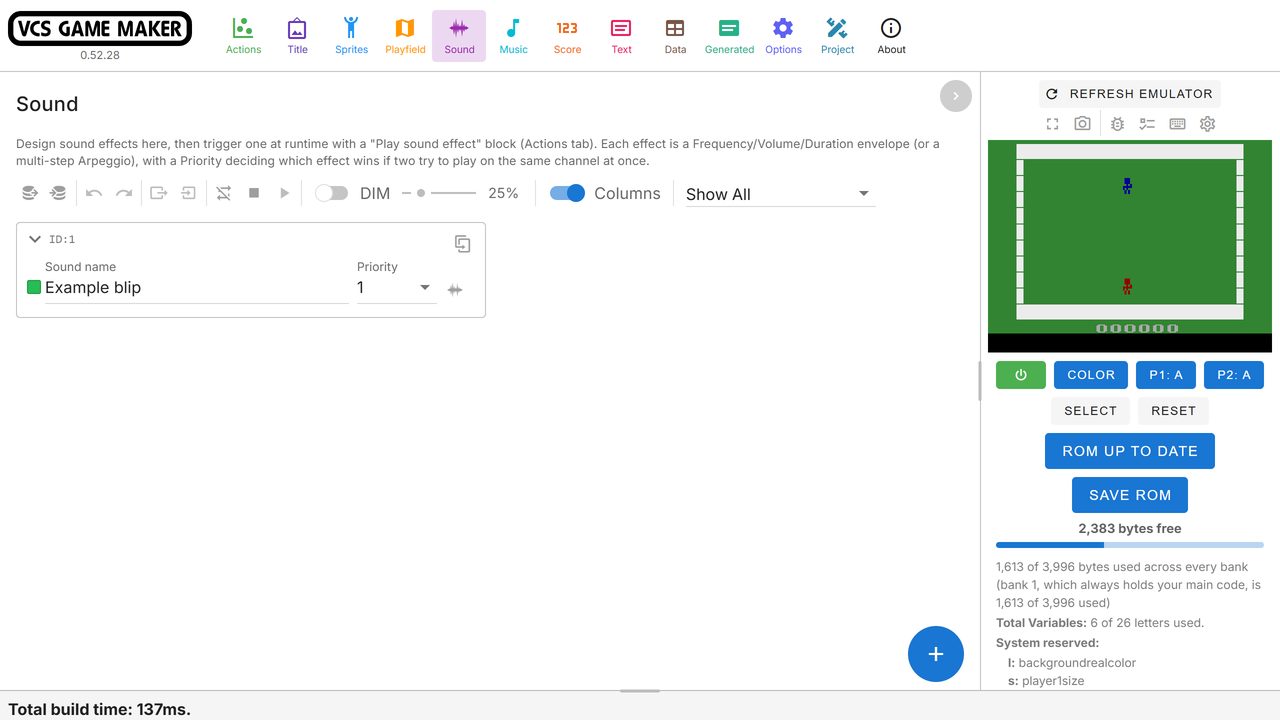
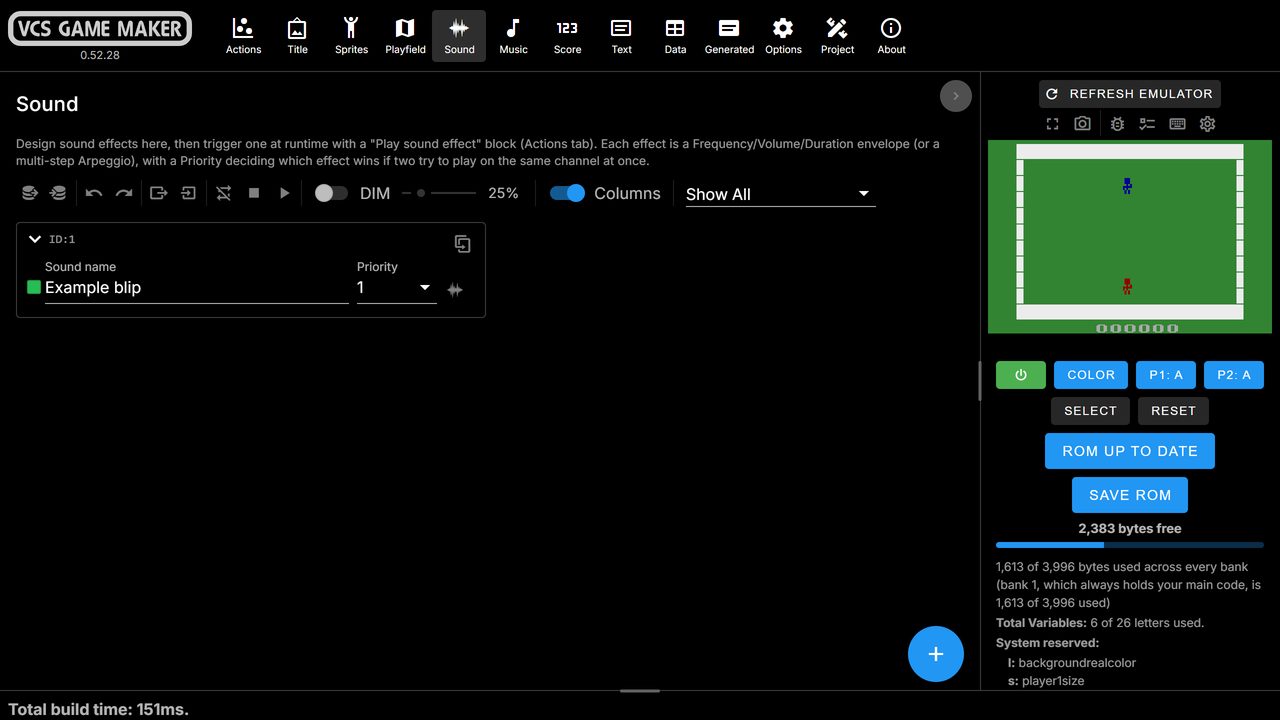
Design sound effects with envelopes, arpeggios and slides. Draw waveforms for the DPC+ sound chip, and compose songs in a full-featured music editor.
Runs ON... WHATEVER
Use it in the browser or install the desktop app. Supports Windows, macOS, and Linux.
VIEW code,
BUILD ON IT
The Generated tab shows the batari Basic created by your blocks, so you can read it, learn from it and build on it in other game development software.
Examples & sound banks
Download example projects, music, instrument and sound effect banks directly inside the app.
Actions
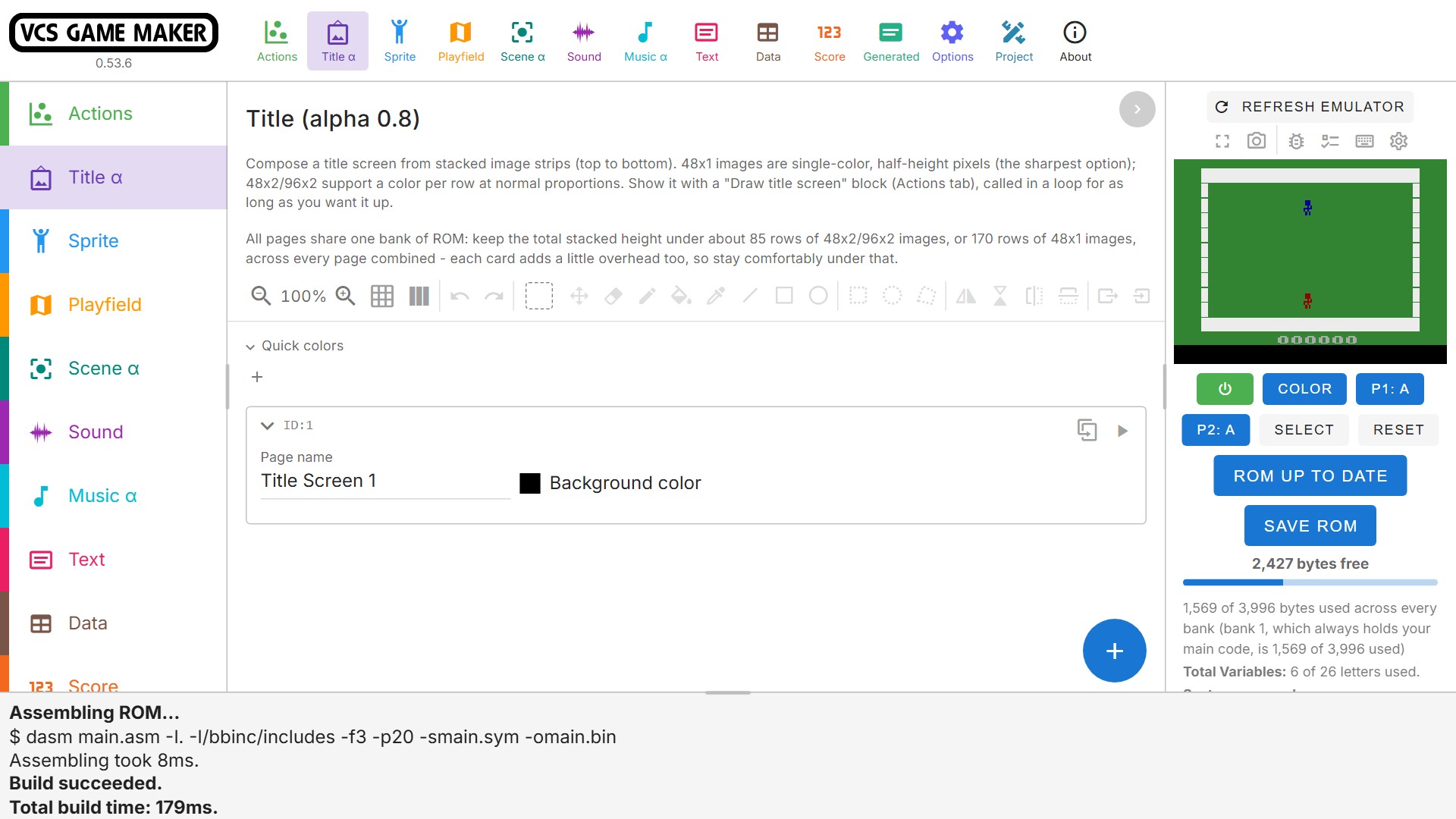
Title screens
Design and animate high-quality, full-color title screens in the editor, and display them with built-in Title Screen kernel support. Build each screen from stacked image strips and add as many pages as you like. Strips can be a single color for the sharpest result, or give each row a different color. The editor has the same drawing tools as the other graphics editors, and you can import and export images.
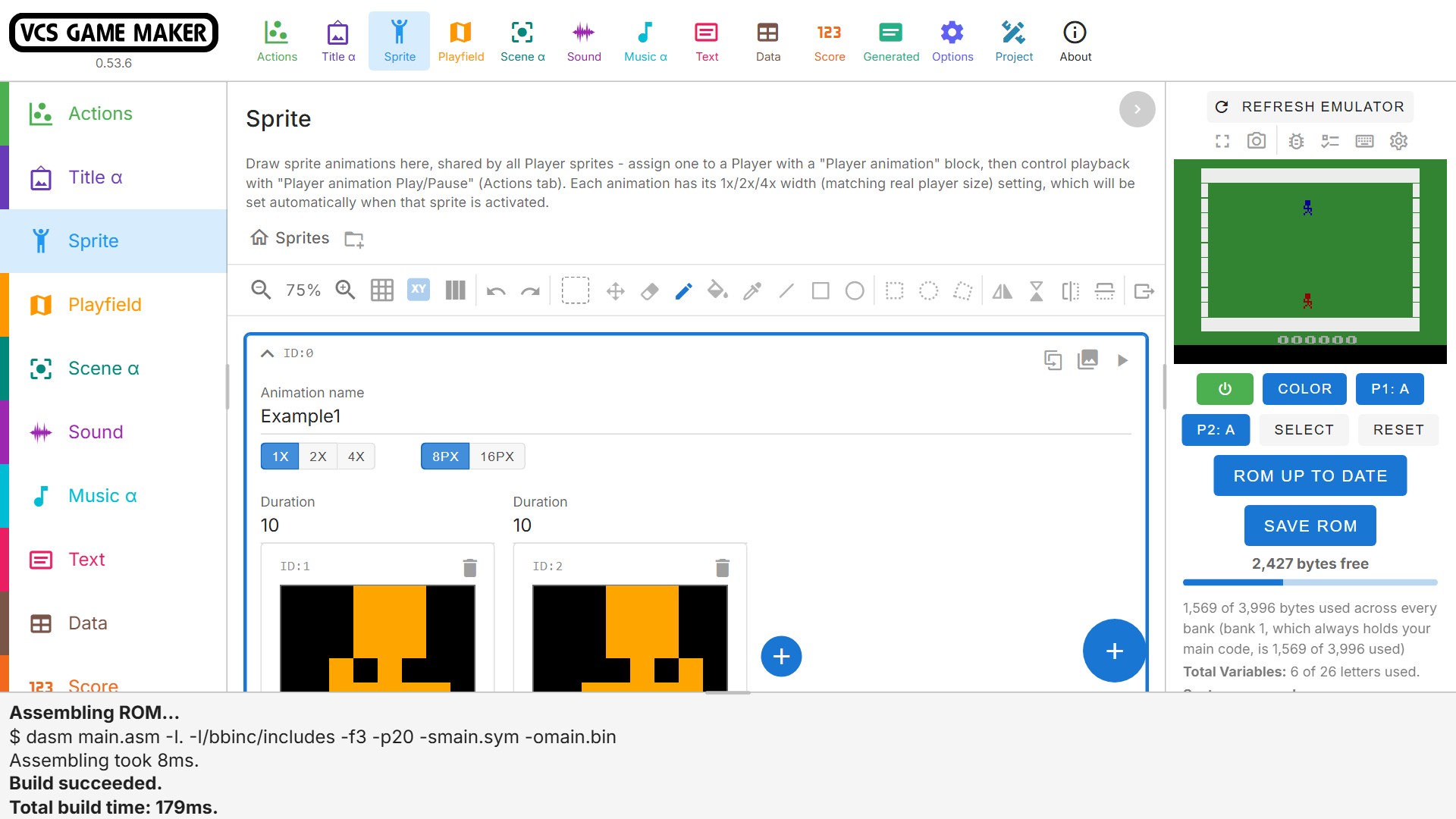
Sprites & animation
Draw sprites with extensive built-in drawing tools, or import files from Aseprite, automatically creating all of your animations with perfect frame timing.
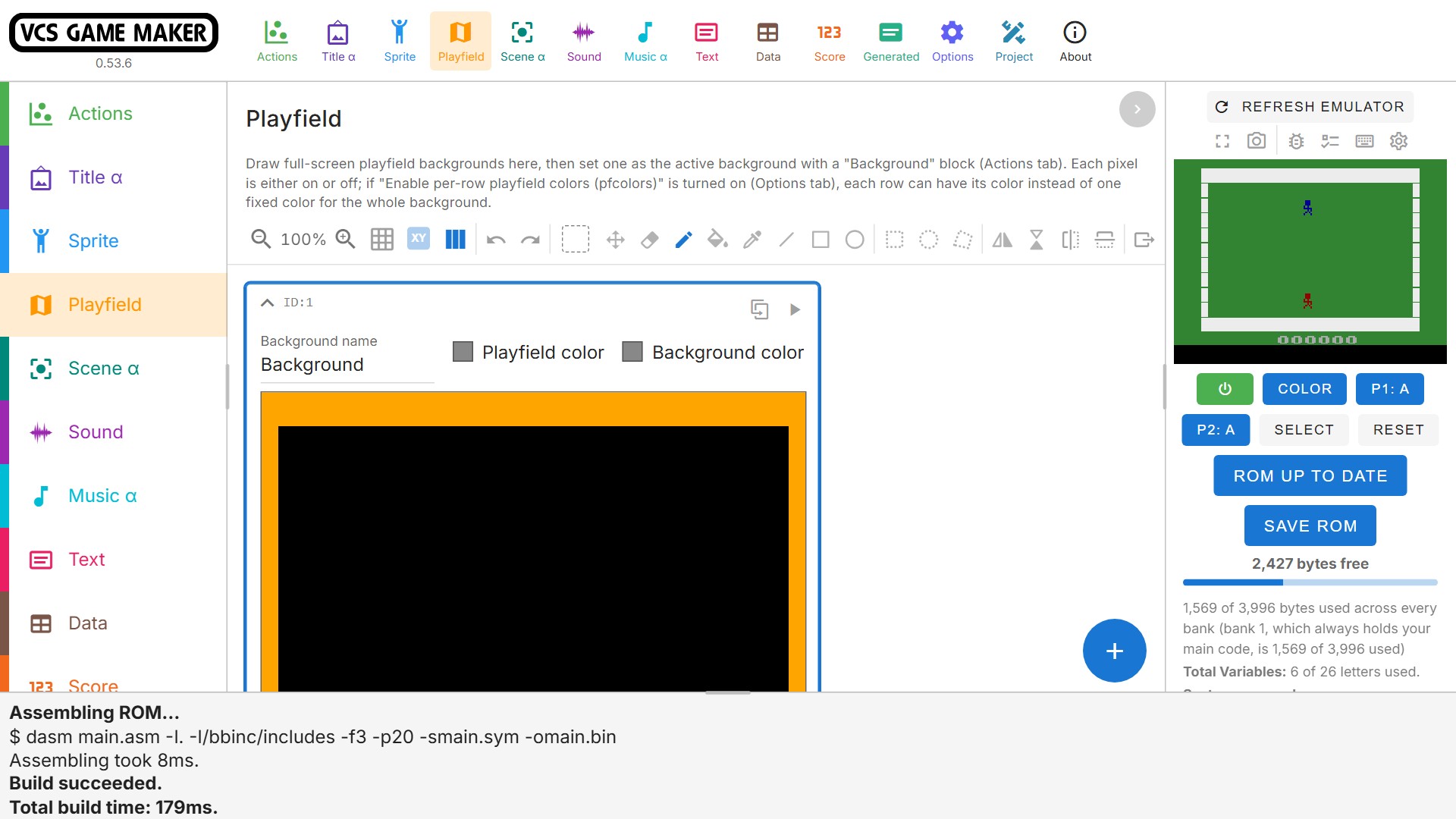
BACKGROUNDS & PlayfieldS
Draw full-screen playfield backgrounds in the editor. It has the same drawing tools as the sprite editor, with per-row playfield and background colors. Preview backgrounds directly in the emulator so you can get things pixel-perfect easily.
Scenes
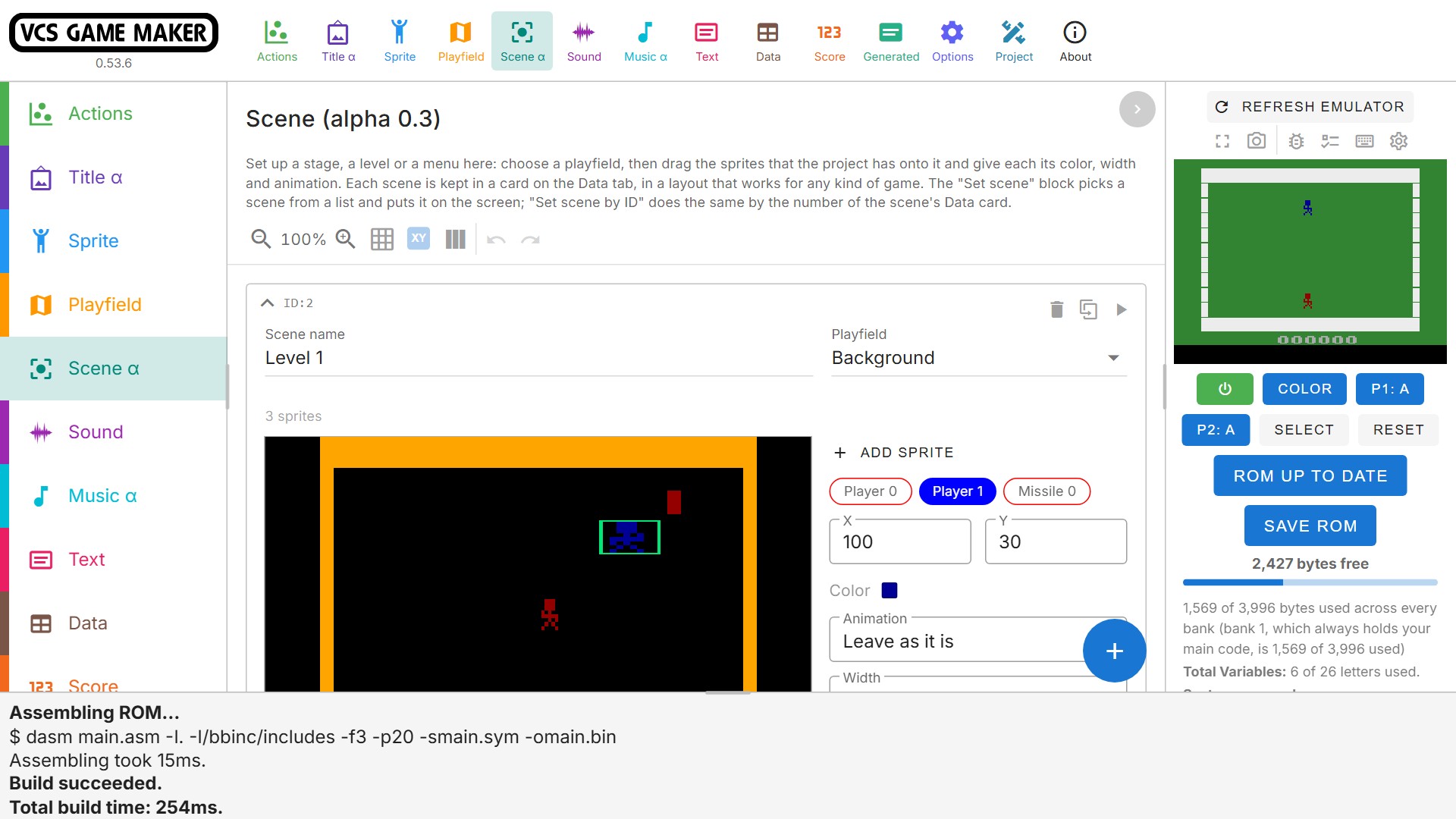
Set up a Stage, Level or Menu in the Scene tab: pick a playfield, then drag your sprites to its starting positions. Set color, width and animation. A single “Set scene by Name” block puts the whole Scene on screen, and “Set scene by ID” lets you set Scene by ID. Scene data is kept for each scene on the Data tab, and a the play button lets you preview the Scene directly in the emulator.
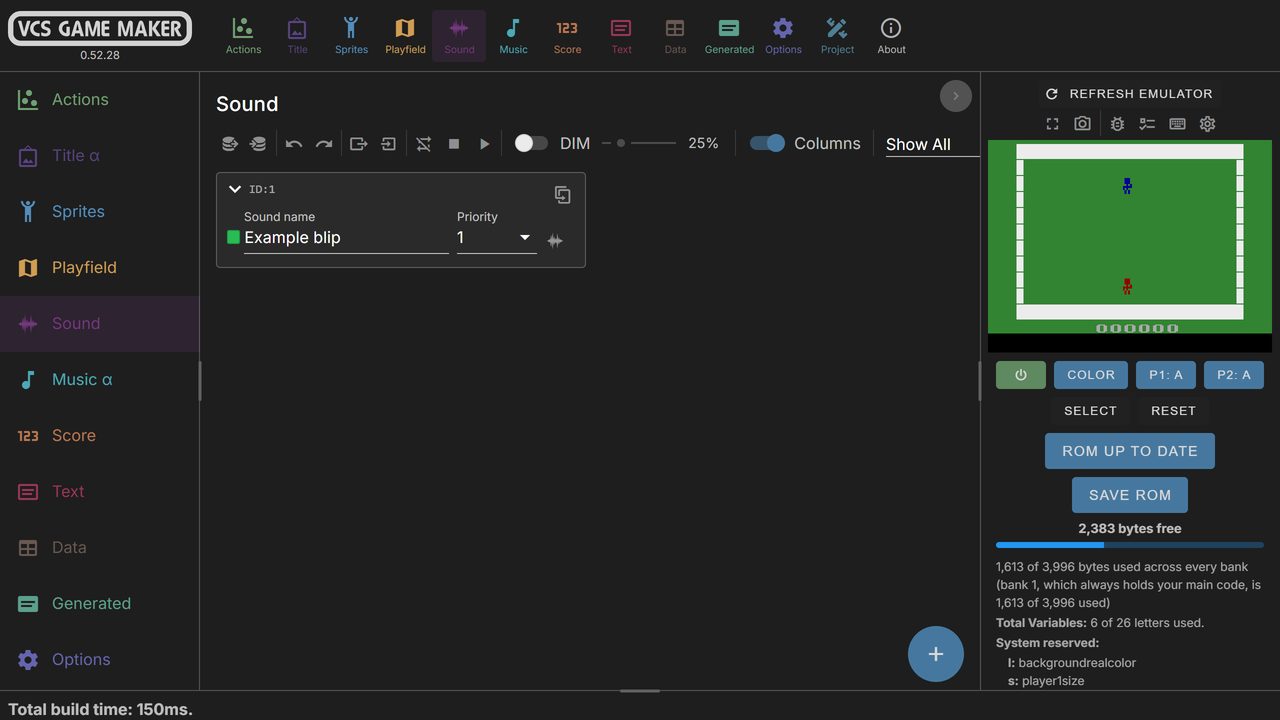
Sound & music
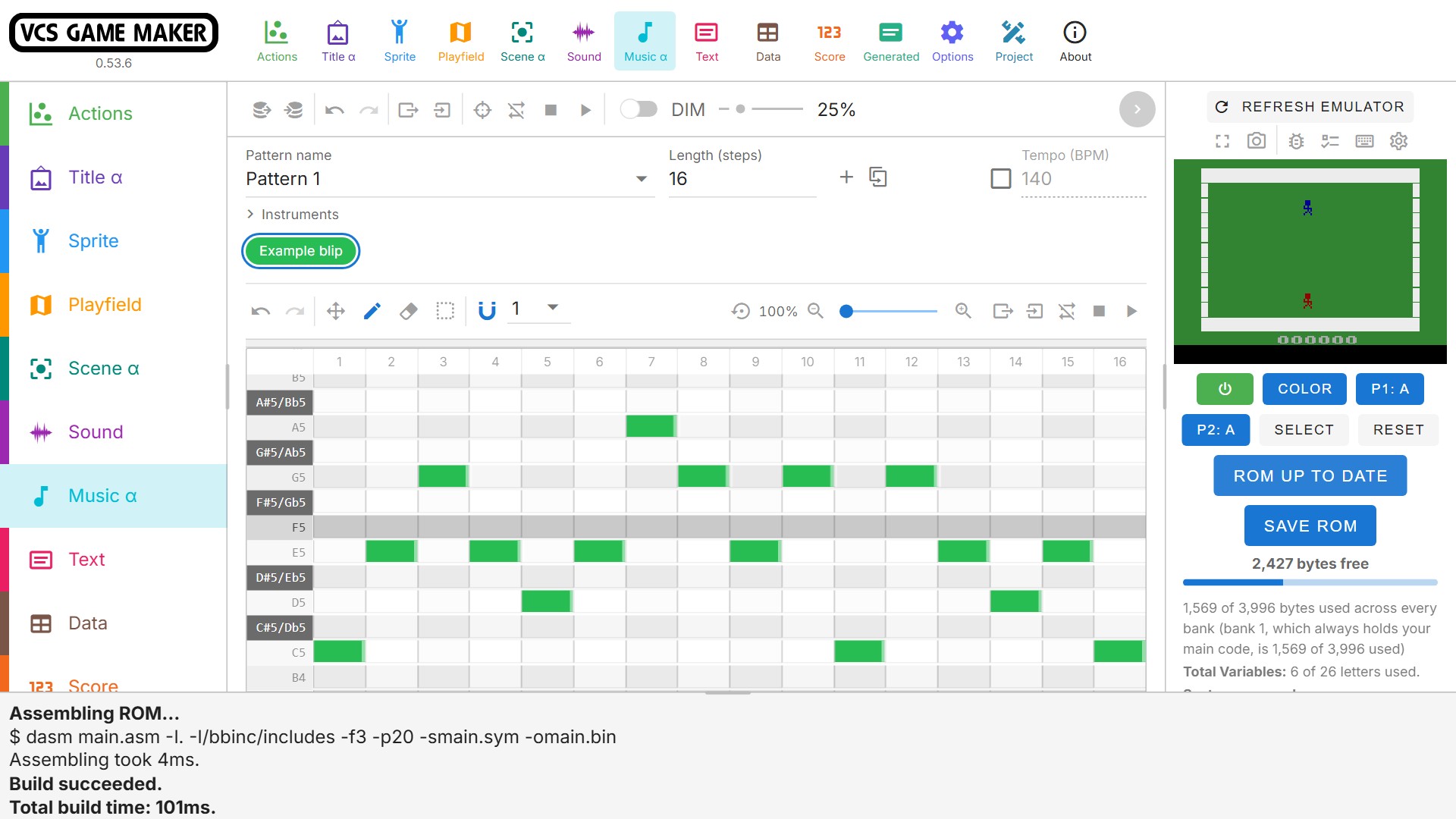
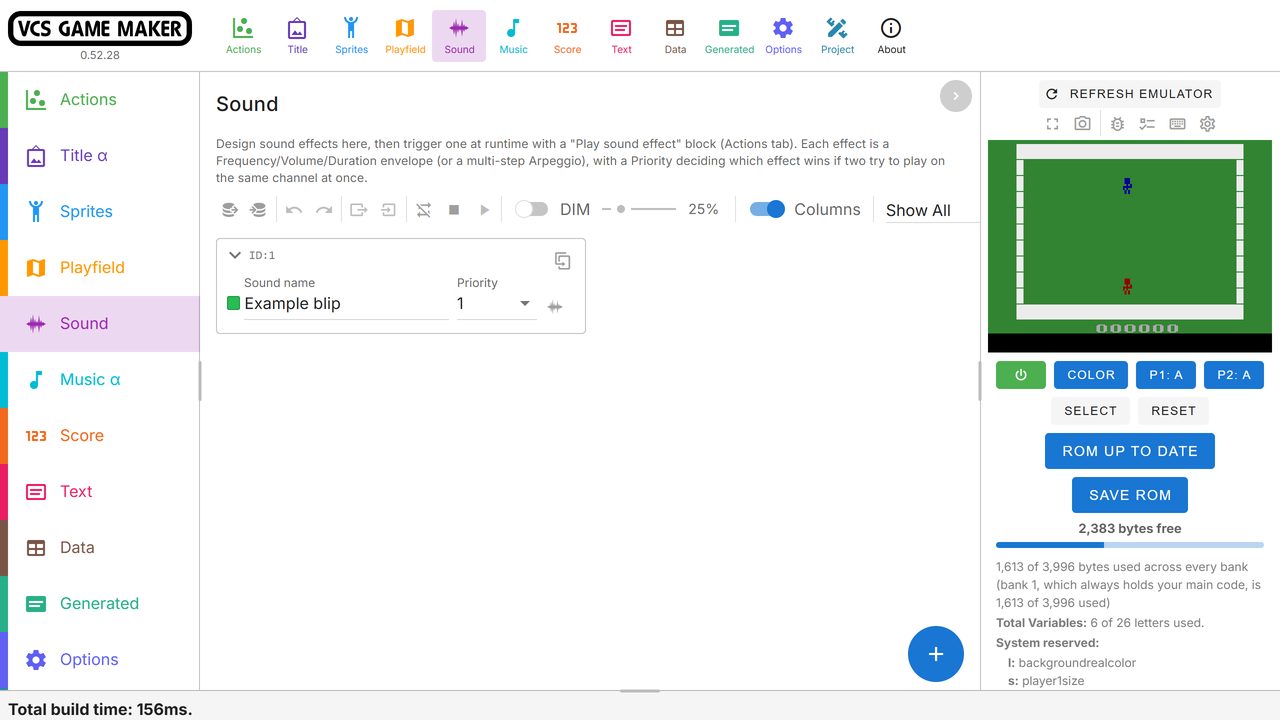
Make sound effects and songs without writing any code. The sound effect editor shapes TIA sounds with envelopes and arpeggios, and on DPC+ lets you directly waveforms.
The music editor lets you builds songs from patterns, with downloaded or custom instruments designed on the Sound tab.
Text & scores
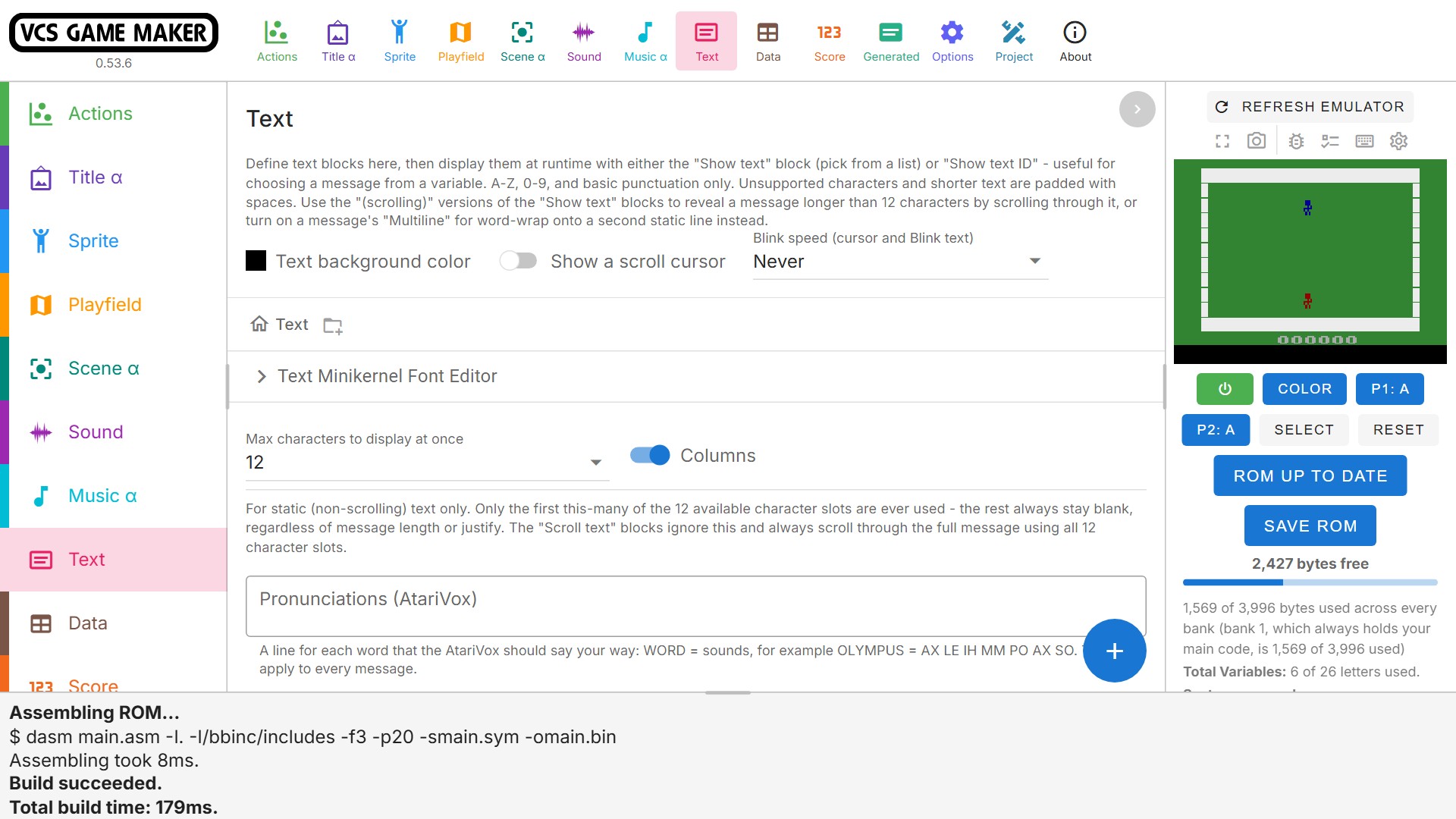
The Text minikernel shows messages on screen, by text name or ID. VCS Game Maker additions include up to 2 lines of text on-screen with independent line colors, scrolling text, and multi-line dialog text up to 255 characters long.
The score is a six-digit display (or five, if you prefer) that your blocks can set, add to and read. Pick a built-in font, a compact Squish font that frees room for the text rows, or draw custom digits, and give the score row a background color that can differ from the playfield's.
USE IT YOUR WAY
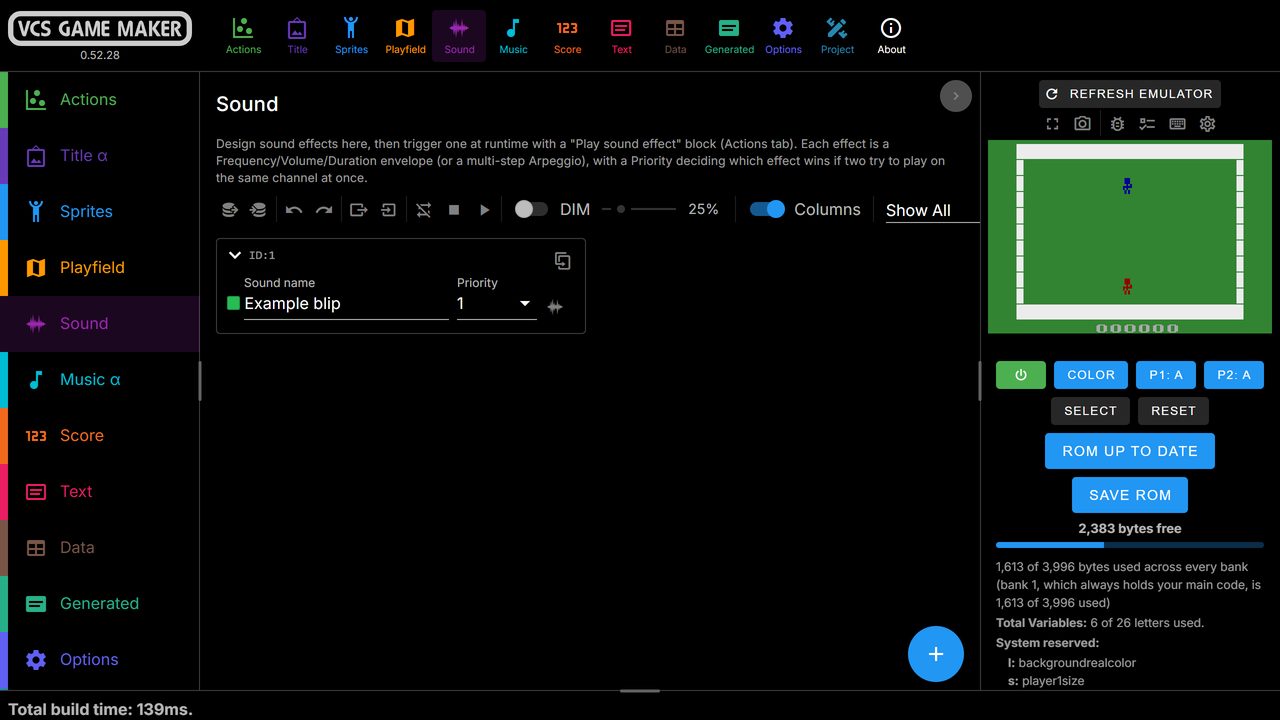
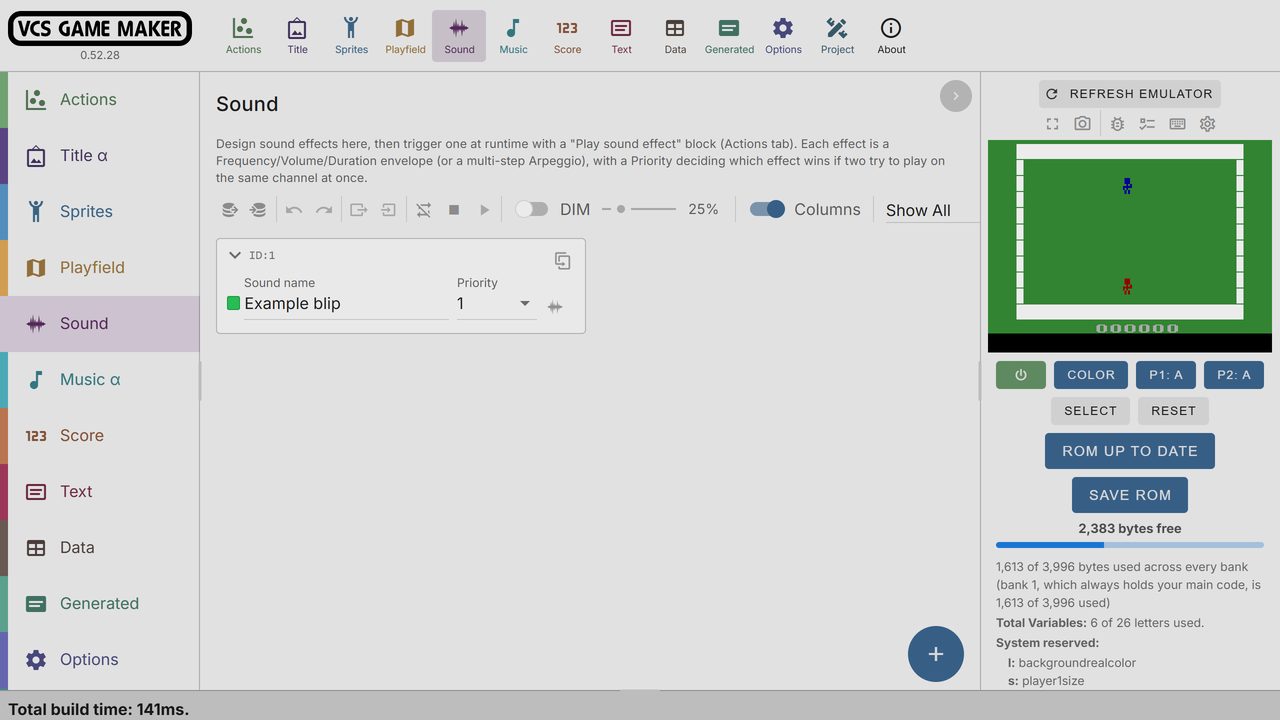
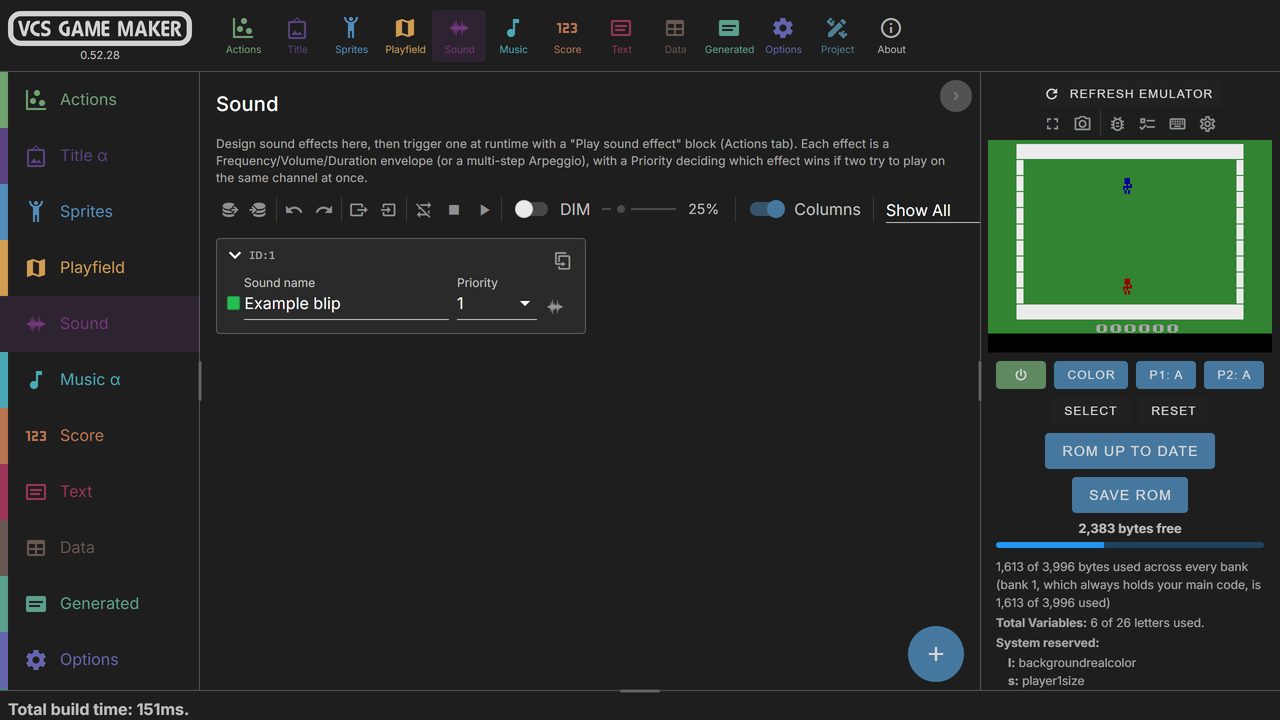
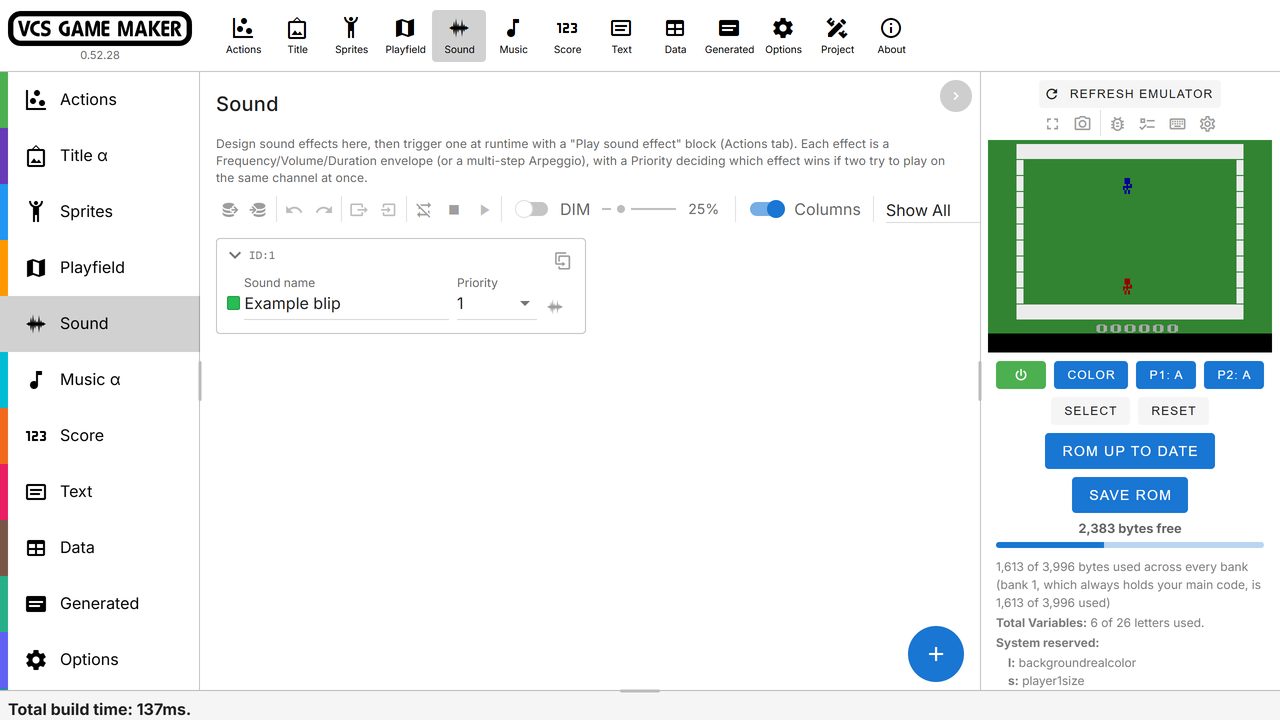
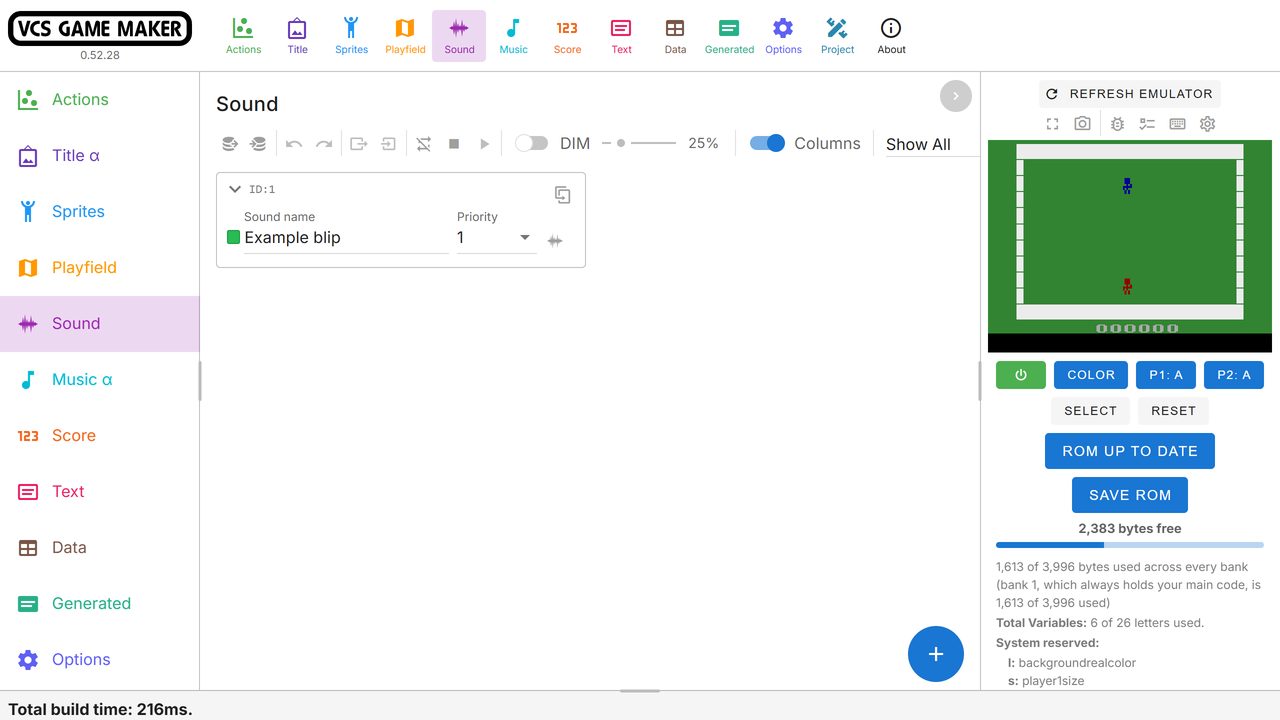
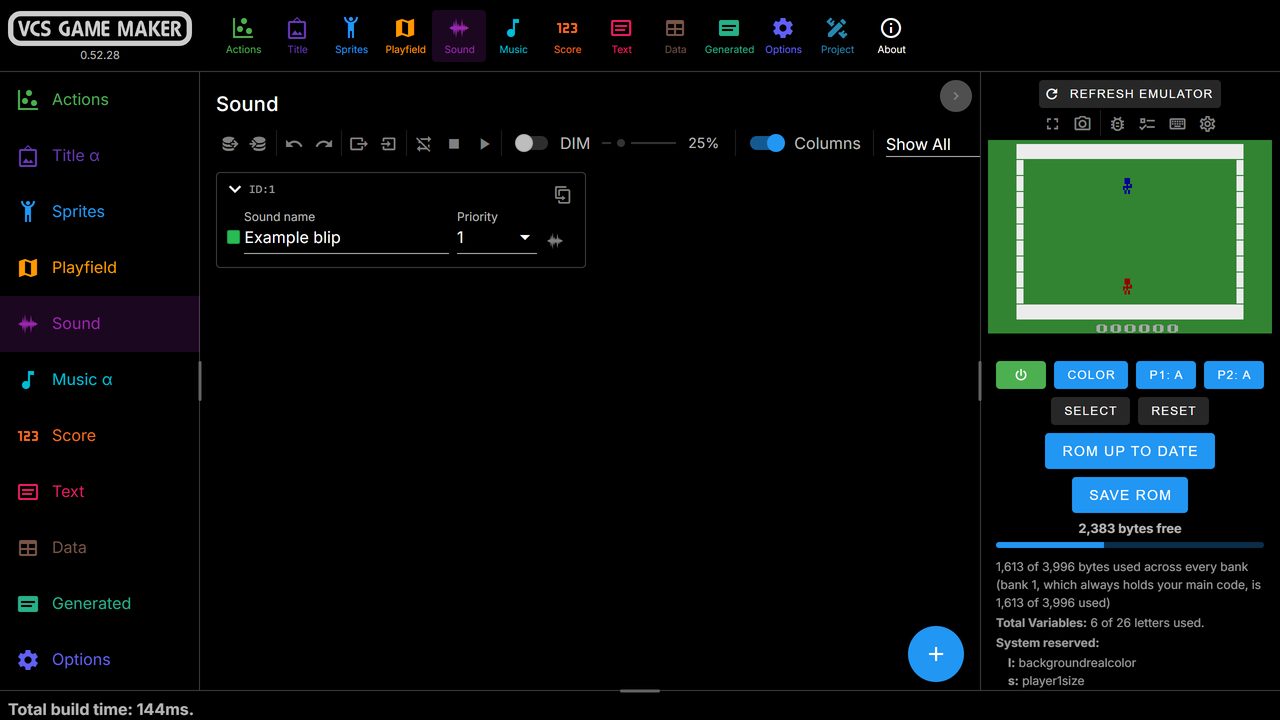
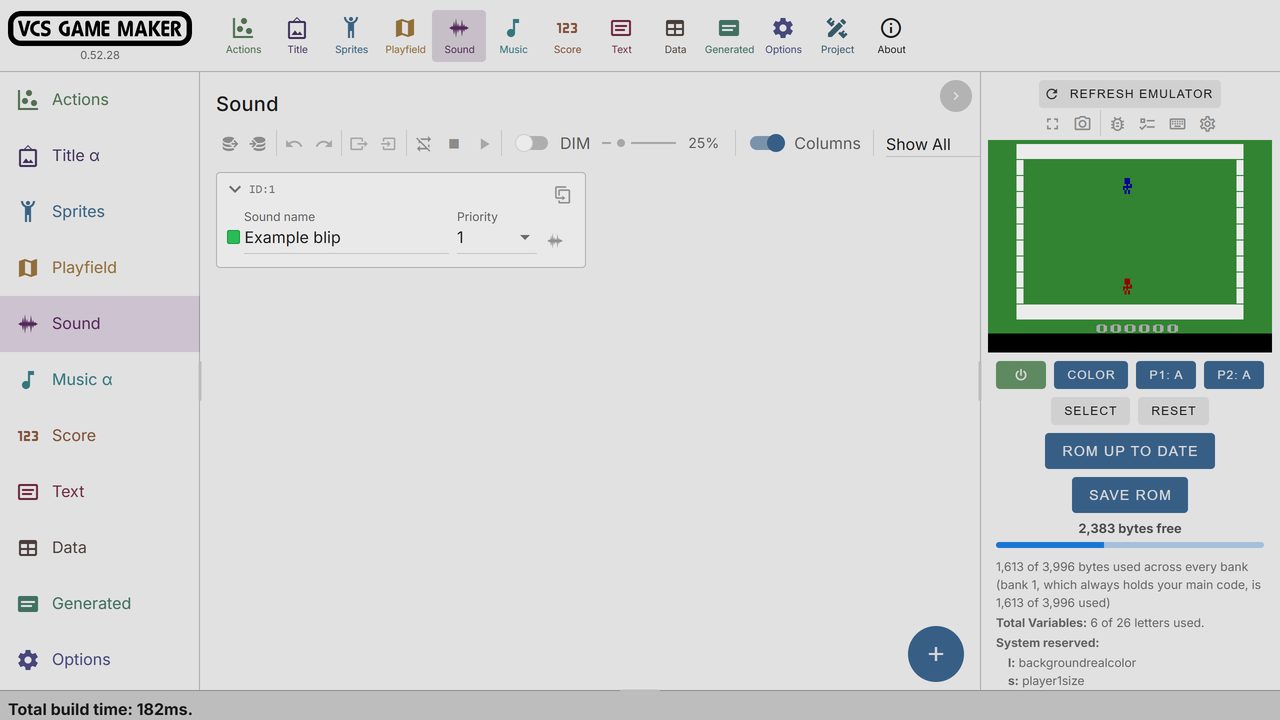
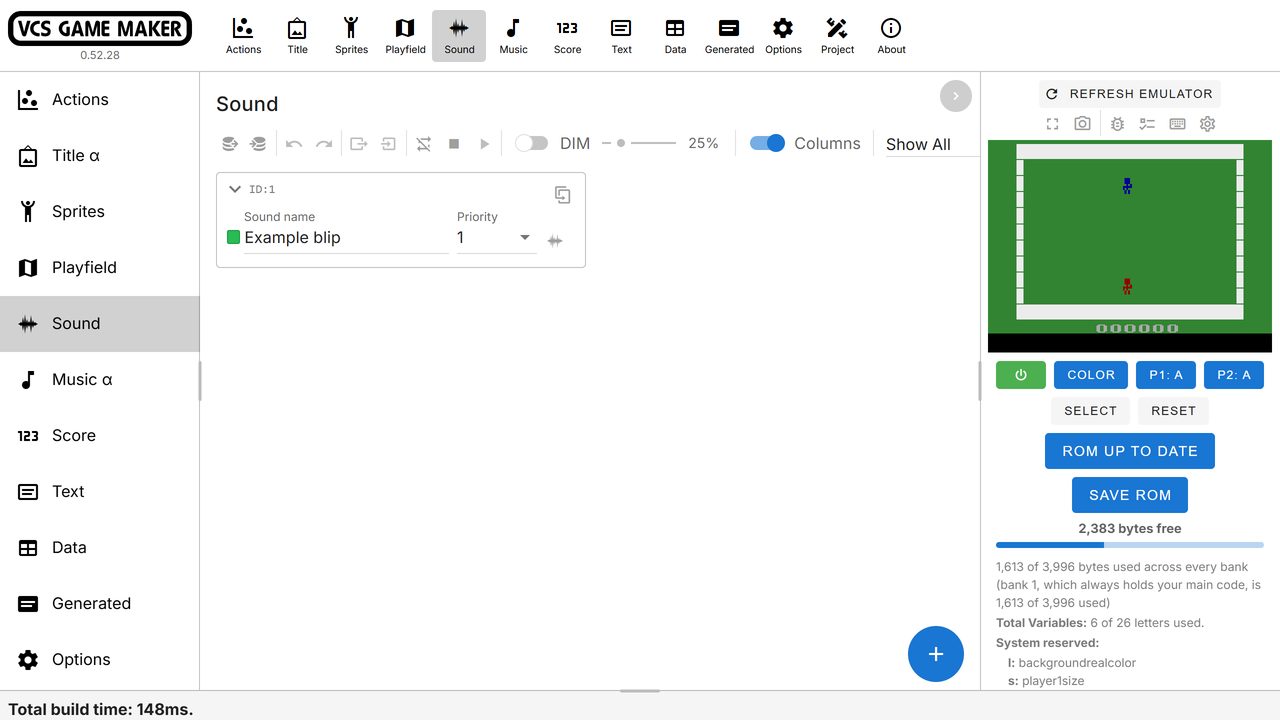
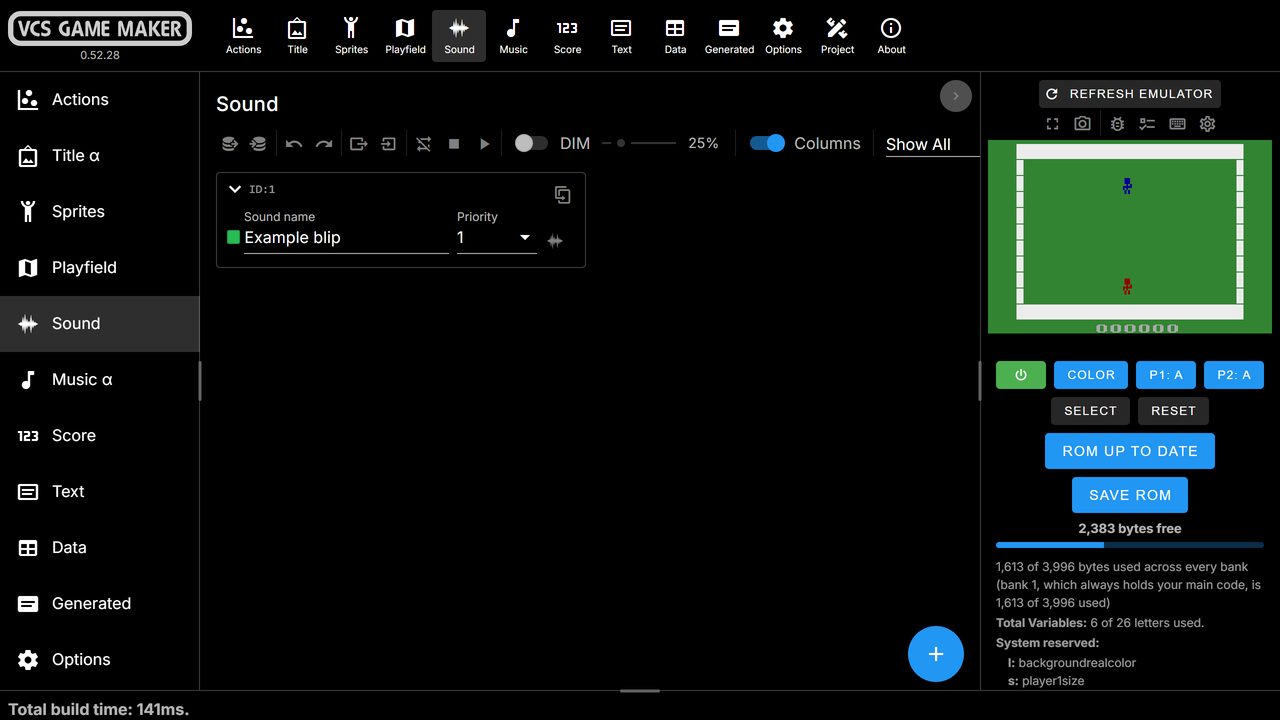
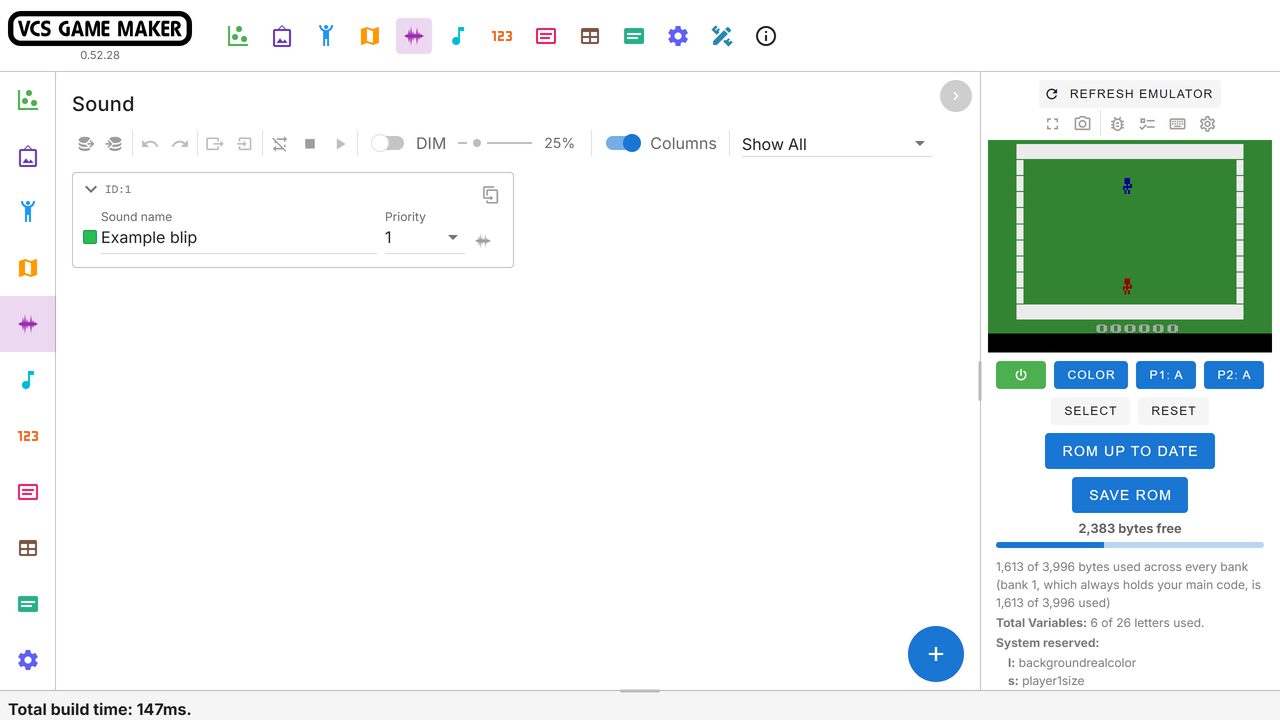
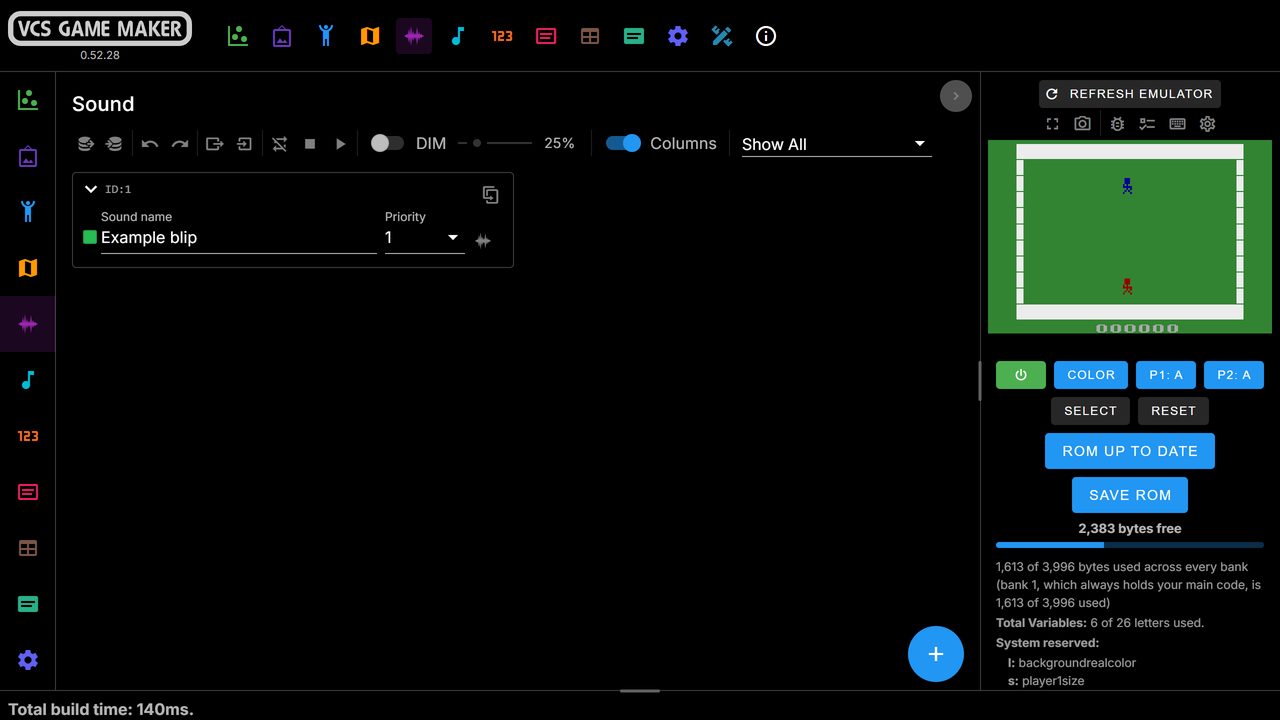
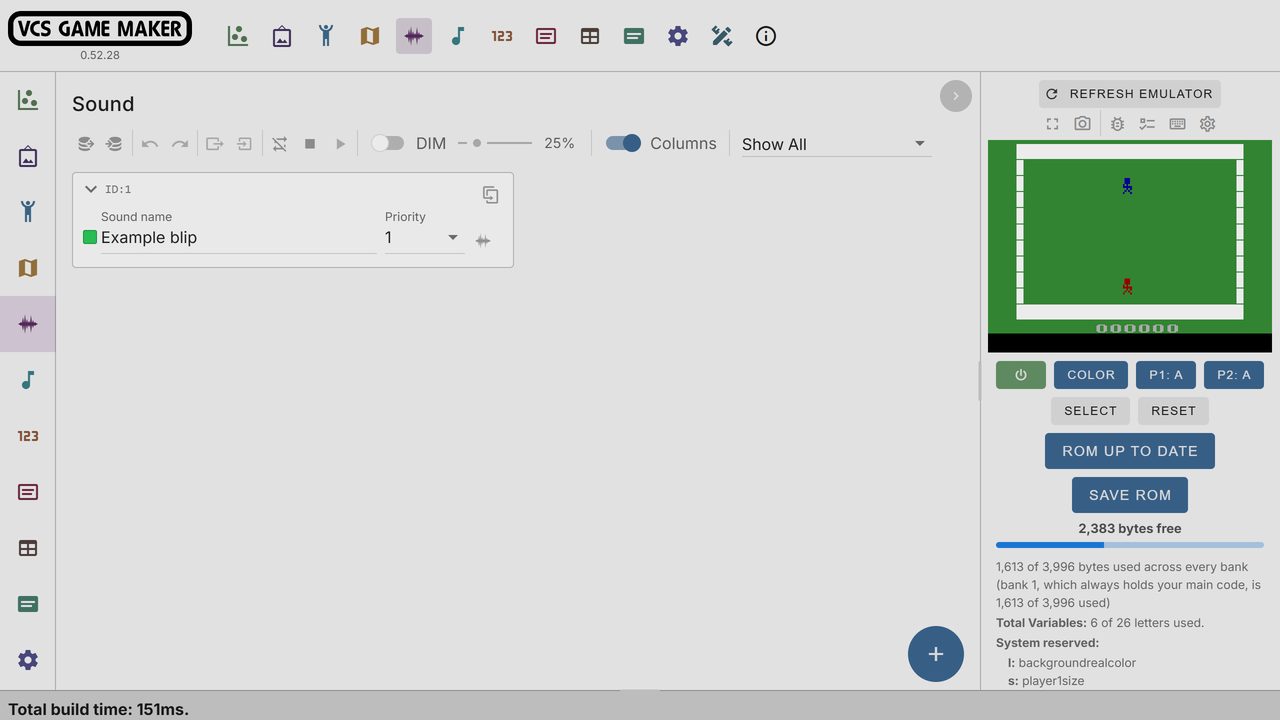
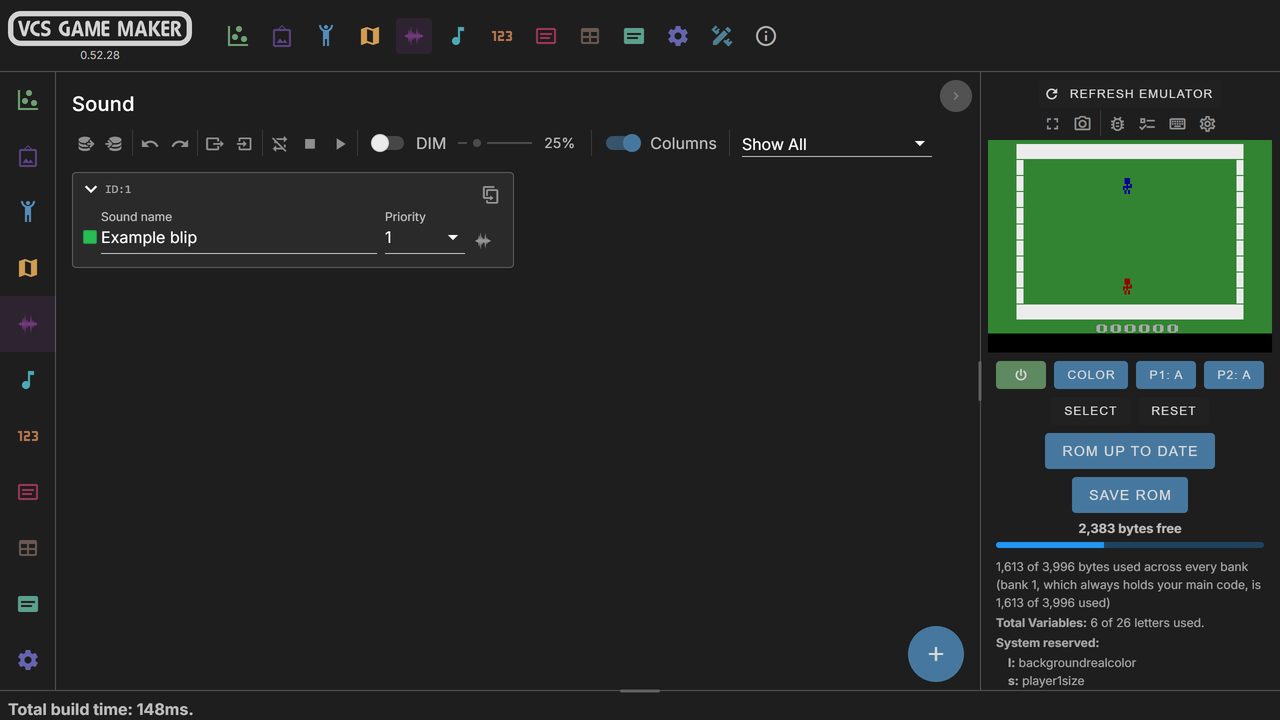
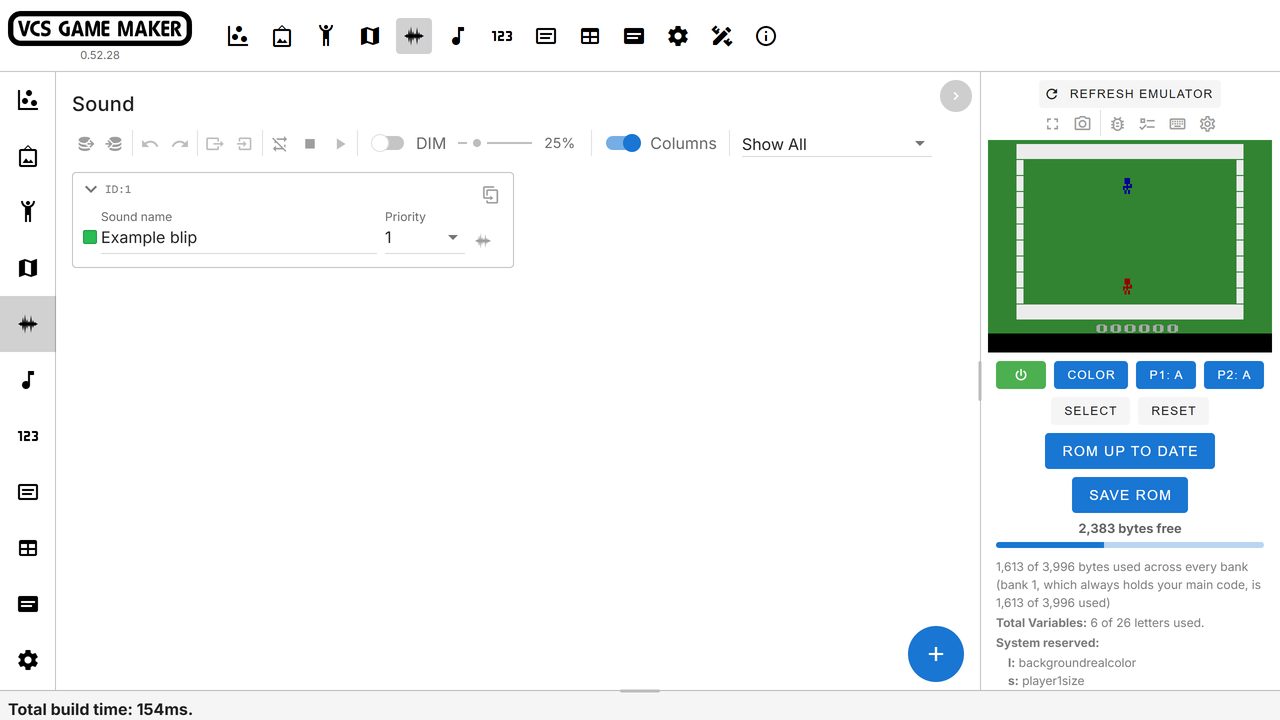
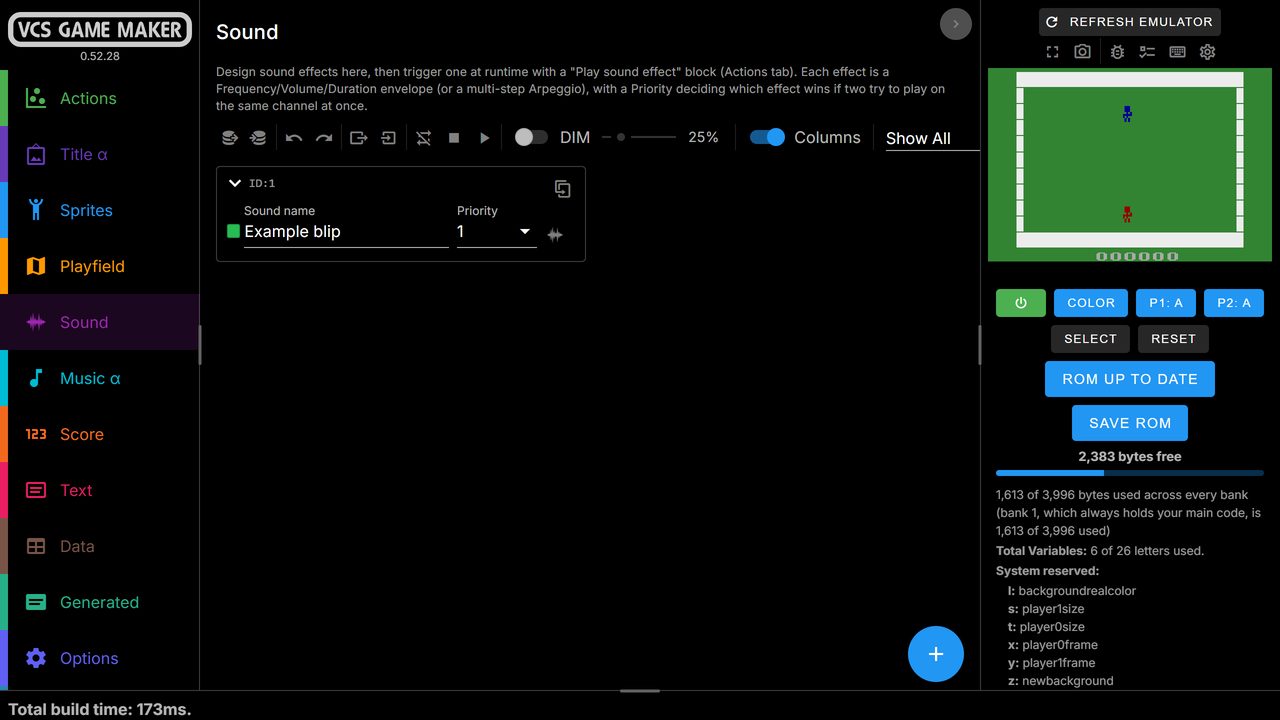
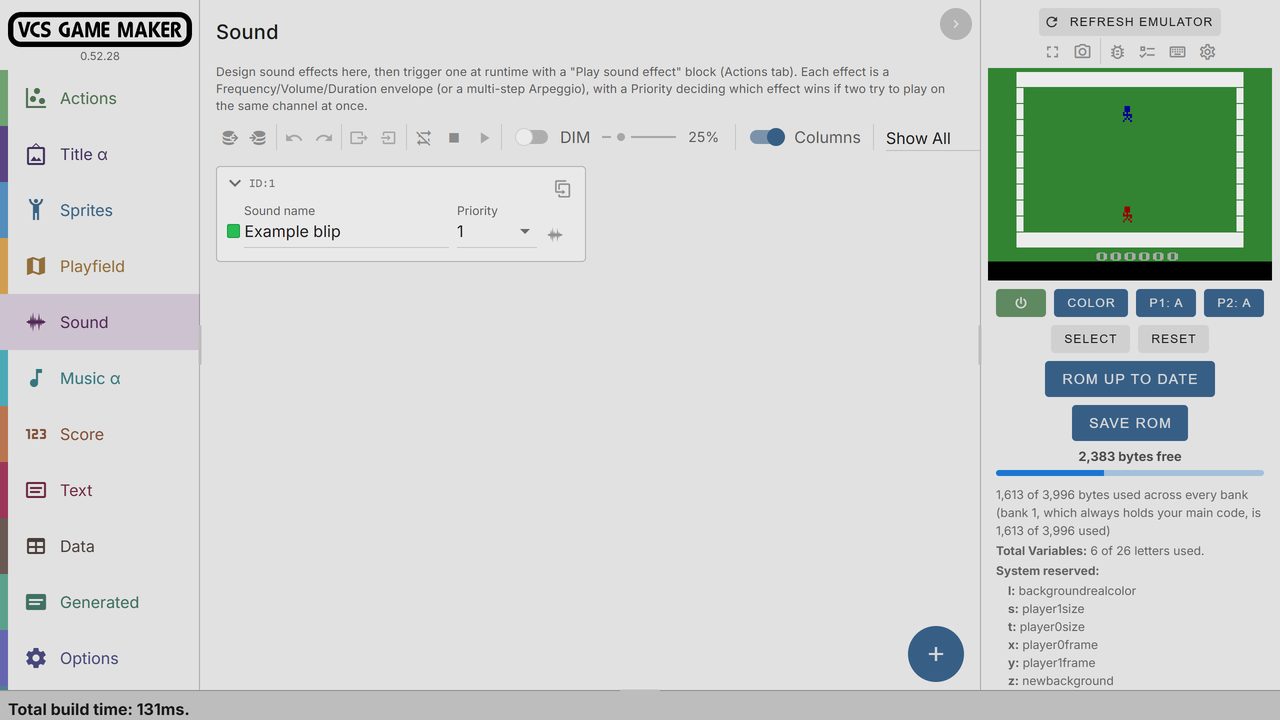
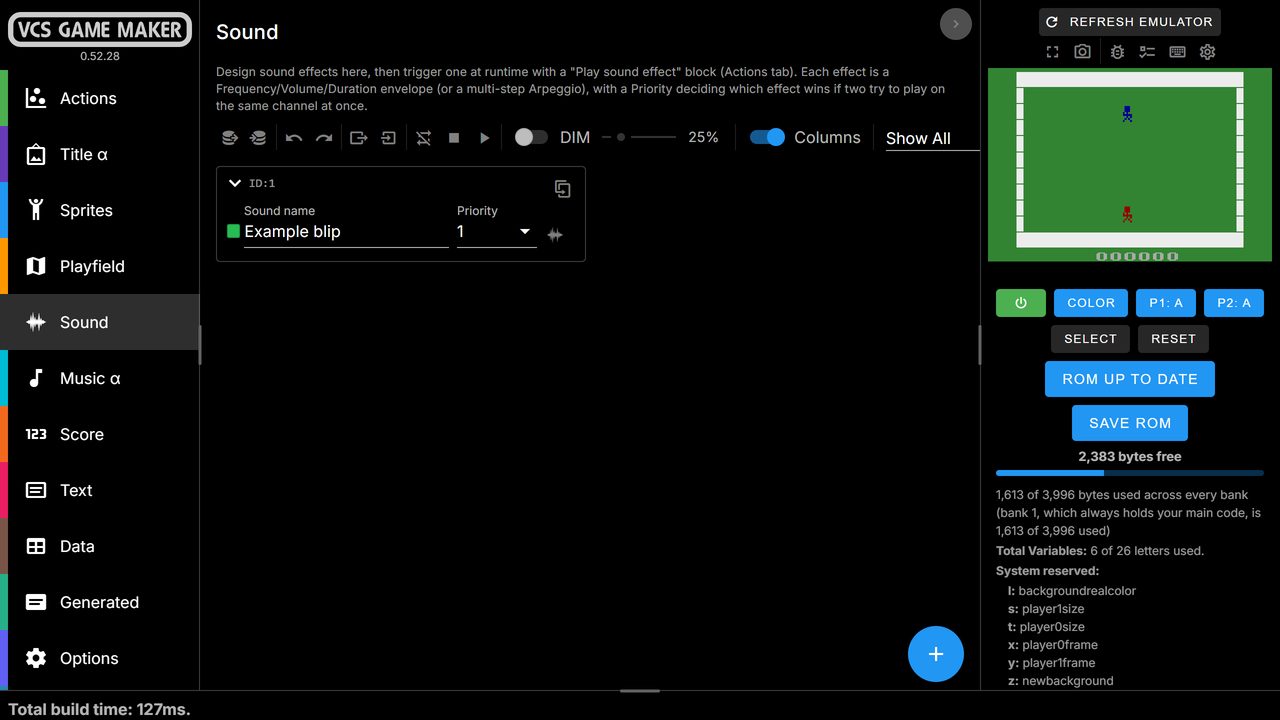
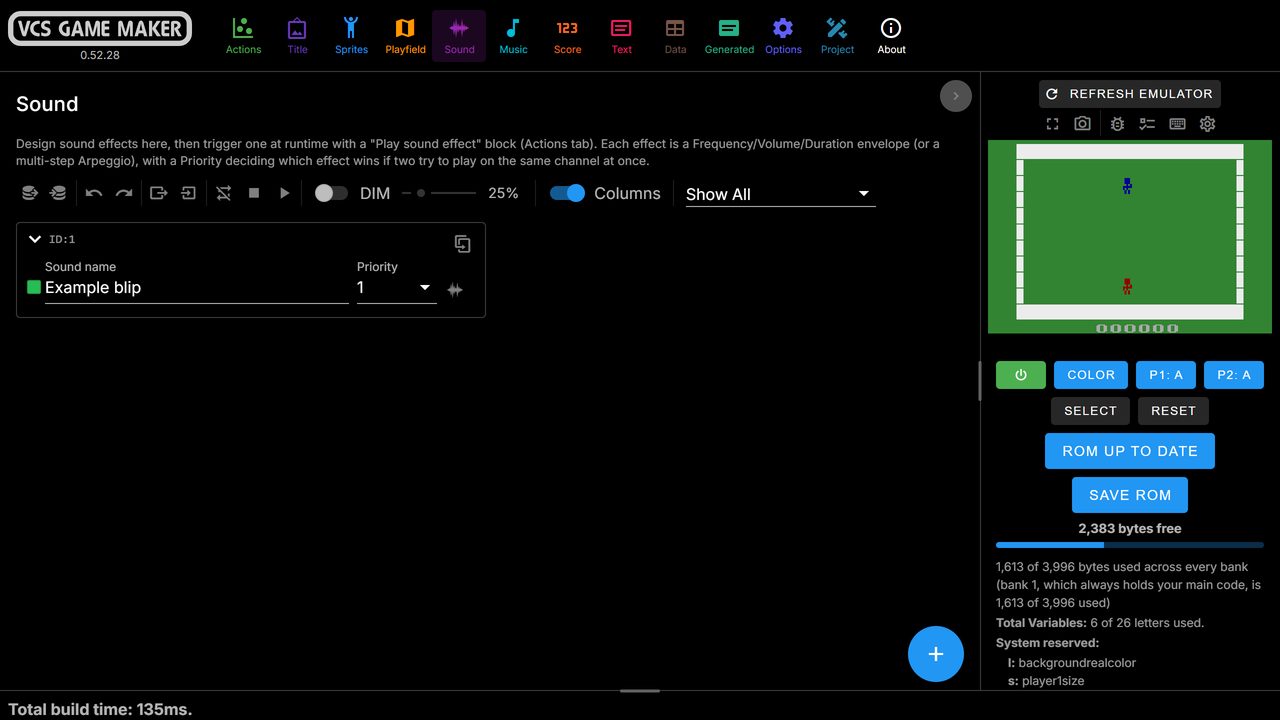
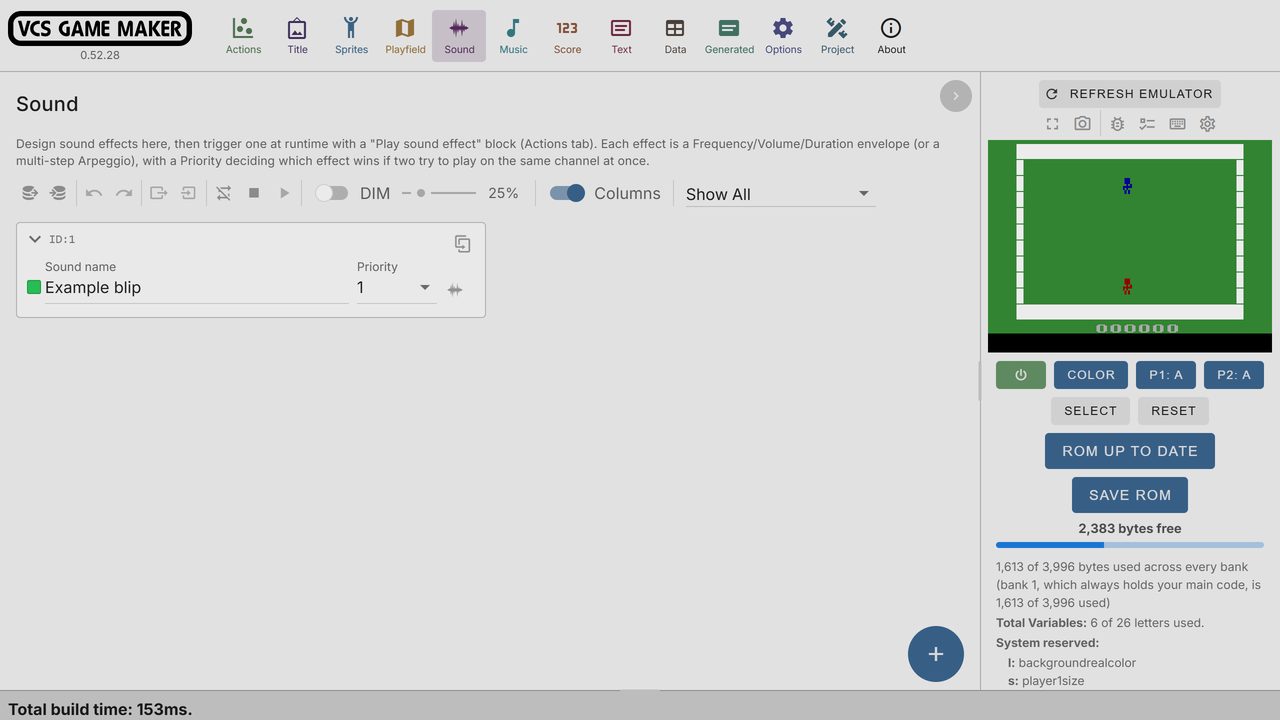
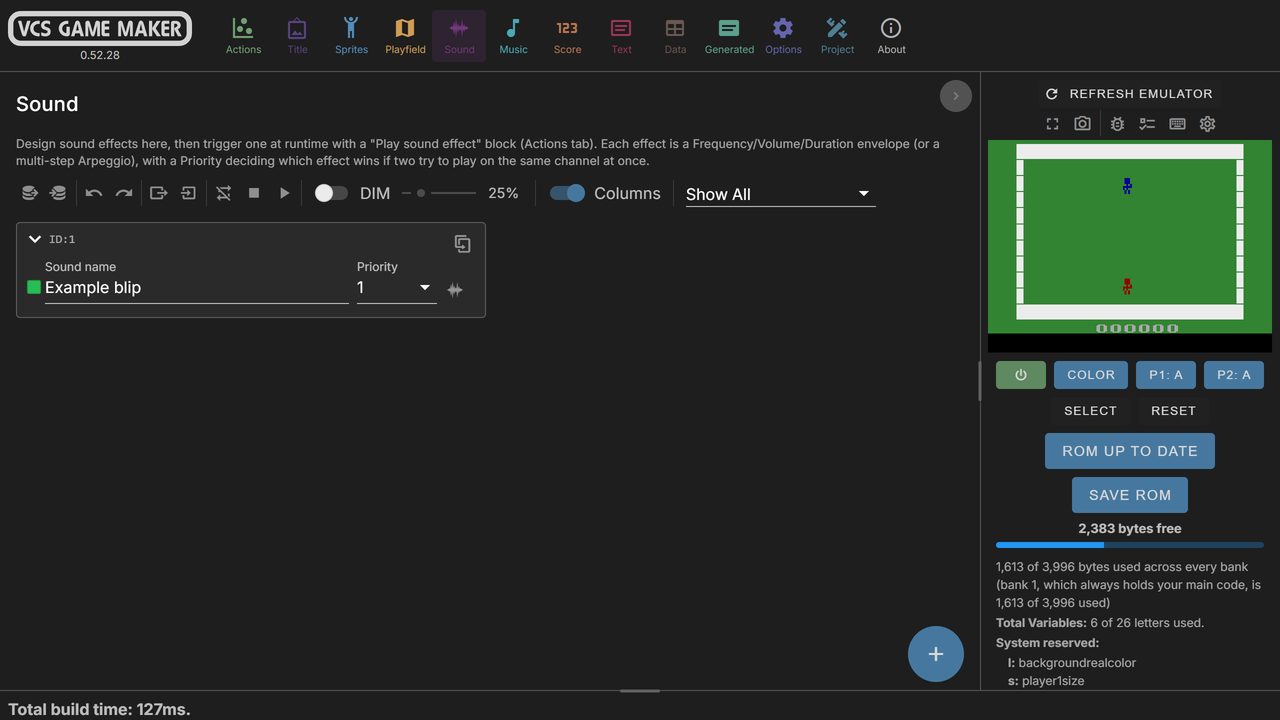
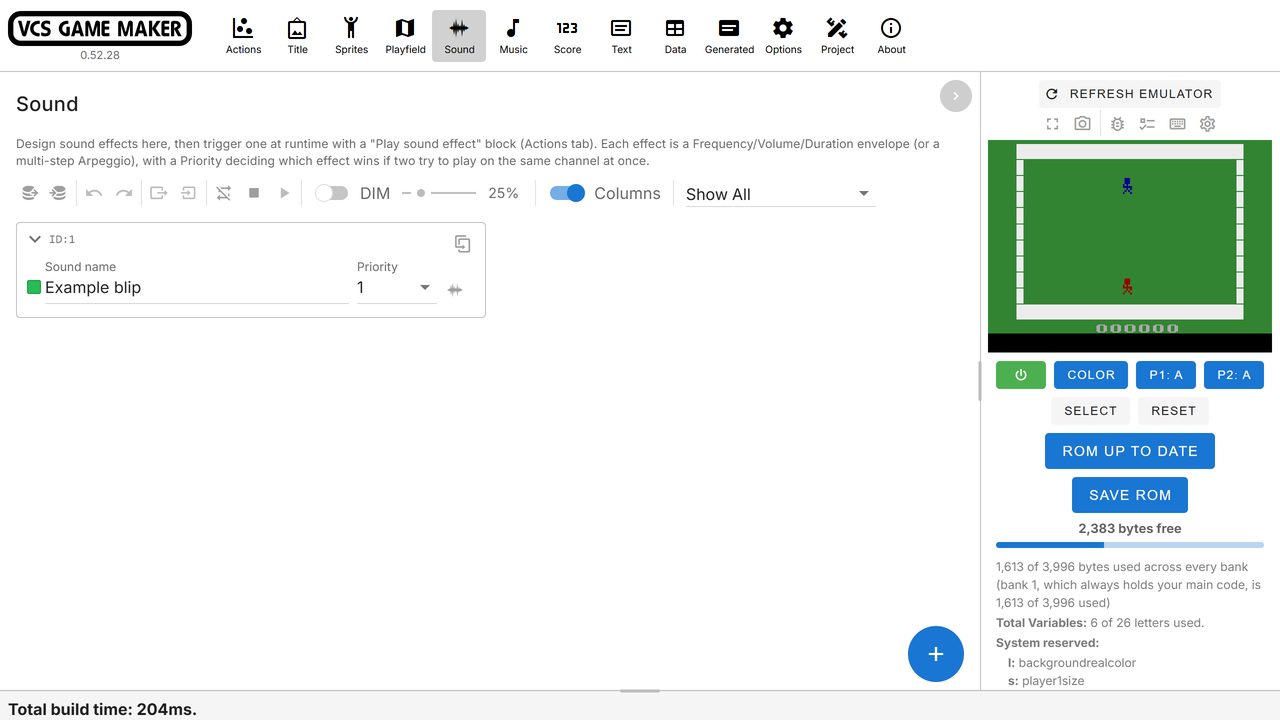
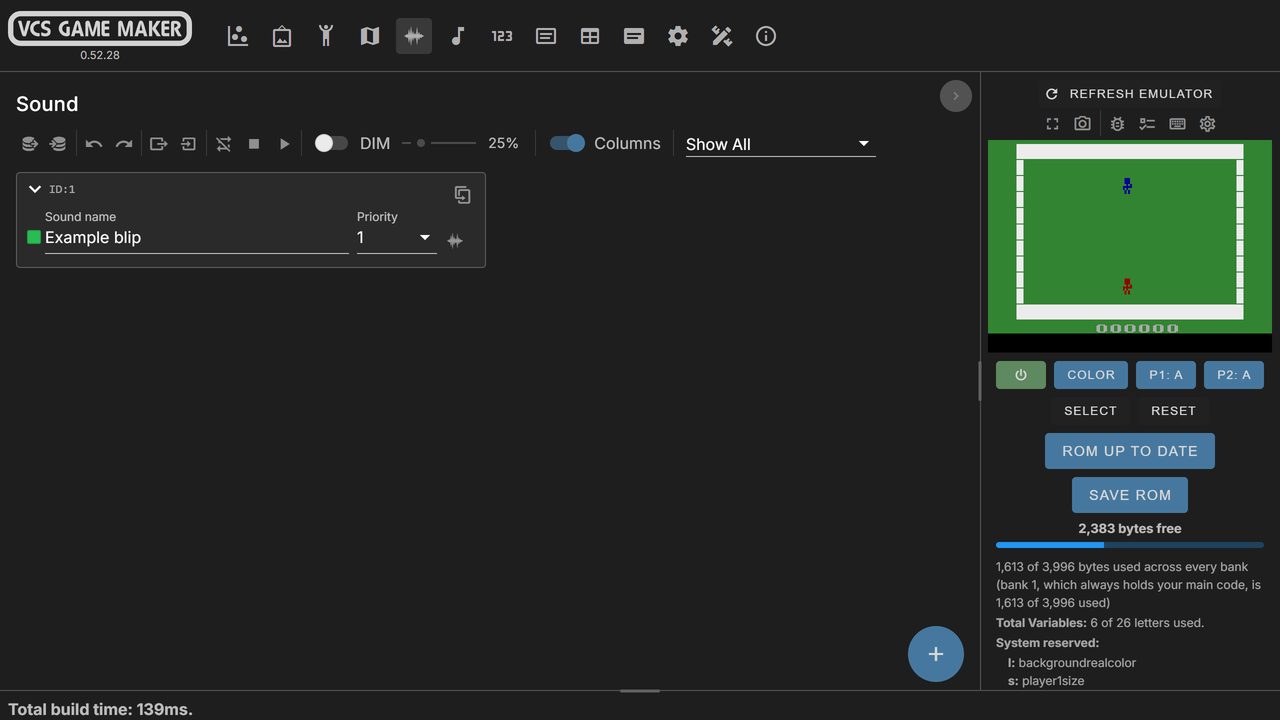
Pick the look that suits you in the Options tab. Dark Mode, Subdued Palette, High Contrast and Expert Mode allow you to customize the VCS Game Maker UI to your preferences.
Latest updates
Version 0.54.0 (release page)
The block toolbox groups its blocks in drawers inside the categories: Sprites has Animation, Behaviors (Bounce, Fade, Fire, Inertia, Lock, Move, Platform, Scroll), Pooling and VFX; Playfield has Behaviors, Collision, Utility and VFX; Input has Collision, Joystick, Keypad and Utility; Title, Score, Music and Event have drawers too. A category with drawers opens and closes with its arrow, or with a double-click on its name, and a single click only shows its blocks. The Player rainbow colors blocks show on DPC+ without the per-row color option. The example blocks that wrapped Platform in a joystick if, the repeat 30 times and the Title screen update example are gone. The wiki lists the blocks on each page, with block images.
Version 0.53.21
Playfield tiles can be up to 127 rows tall (they were 32): the Playfield to tiles popup and Set height offer the new heights, and Best looks at them all.
Version 0.53.20
The 4-pixel tiles option of Playfield to tiles is hidden for now, until it has been tested more.
Version 0.53.19
DPC+ backgrounds can be kept as runs (Options tab, Keep backgrounds as runs): each playfield column is kept as runs of rows and the coprocessor writes the rows when a background is shown, used only when that takes fewer bytes than the rows and the tiles (a test project went from 756 to 664 bytes). DPC+ keeps tiles only when they and their part of the coprocessor program are smaller than the rows. A scene trigger can call a Subroutine or a Function, with its arguments, the frame it fires. DPC+ variables that do not fit in memory go in the stack first, which gives projects with more than 127 rows or a scrolling background about 224 more bytes. Players 2 to 9 that play the same animations share one copy of the animation code and tables. Bounce, Find playfield pixel and Fire's playfield check run on the coprocessor at 192 rows and with rows of 3, 5, 6 or 7 lines. A variable used only by bit or nibble blocks gets a byte again, so those projects build. On the standard kernel with 6 score digits the Text Minikernel draws every letter in its place again (HELLO WORLD! showed as HELLD UOOLW!).